
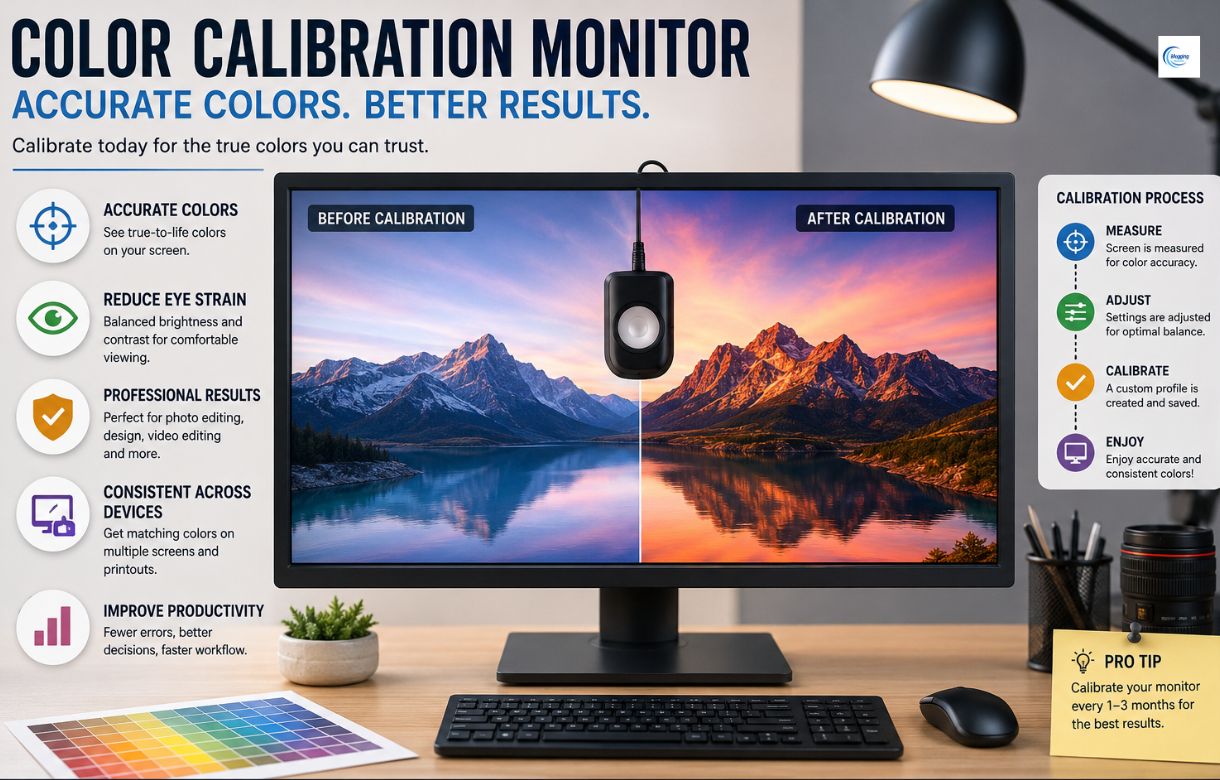
Have you ever edited a photo on your computer, only to discover that the colors look completely different on another screen? Or maybe a movie looked too dark, too warm, or oddly faded on your monitor? That is where monitor color calibration becomes incredibly important.
A properly adjusted screen is not just for photographers or graphic designers anymore. Today, students, gamers, video editors, business professionals, and everyday users all benefit from accurate display colors. A color calibration monitor helps ensure that what you see on the screen is true to life.
Think of your monitor like a musical instrument. Even the best piano sounds terrible when it is out of tune. In the same way, even a premium display can produce poor visuals if you fail to calibrate monitor settings correctly.
In this detailed guide, we will explore everything you need to know about display color calibration, why monitor calibration matters, how it works, and how you can achieve professional-level results without confusion.
Table of Contents
ToggleWhat Is a Color Calibration Monitor?
A color calibration monitor is a display that produces highly accurate and balanced colors after adjustment and testing. These monitors are designed to show colors consistently across different devices and lighting conditions.
When professionals perform monitor calibration, they compare screen output against trusted color standards. The goal is to remove inaccuracies such as:
- Overly warm colors
- Blue tint problems
- Incorrect brightness
- Poor contrast
- Oversaturated visuals
A calibrated monitor ensures that images, videos, and graphics appear natural and reliable.
Why Monitor Color Calibration Matters
Consistency Across Devices
One major reason people use monitor color calibration is consistency. Imagine designing a company logo that looks perfect on your screen but appears dull when printed. That mismatch can damage branding and professionalism.
Calibration keeps colors consistent across:
- Monitors
- Printers
- Smartphones
- TVs
- Cameras
Improved Visual Accuracy
Accurate visuals matter in many situations. Whether you are editing photos or shopping online, calibrated displays help you see the true colors of products and images.
Reduced Eye Strain
Improper brightness and color temperature can make your eyes tired. A well-calibrated display creates a more comfortable viewing experience during long working hours.
How Display Color Calibration Works
Understanding the Calibration Process
Display color calibration works by measuring your screen’s output and adjusting settings to match standard color profiles.
The process generally includes:
- Measuring current screen colors
- Comparing results with reference standards
- Adjusting brightness and contrast
- Correcting white balance
- Saving calibration profiles
The Role of Color Profiles
Color profiles act like instructions for your monitor. They tell devices how colors should appear.
Popular profiles include:
- sRGB
- Adobe RGB
- DCI-P3
Each profile serves different industries and purposes.
Signs Your Monitor Needs Calibration
Sometimes your display quietly tells you it needs attention. Here are common warning signs:
Colors Look Unnatural
Do whites appear yellow? Are skin tones too red? These are classic symptoms of poor calibration.
Prints Don’t Match the Screen
If printed images look different from what you saw digitally, your monitor likely needs recalibration.
Brightness Feels Uncomfortable
An overly bright display can cause headaches and fatigue.
Different Screens Show Different Colors
When your laptop and desktop show completely different shades, calibration becomes necessary.
Benefits of Proper Monitor Calibration
Professional-Level Accuracy
Creative professionals rely heavily on accurate colors. Proper monitor calibration ensures every detail looks correct.
Higher Productivity
Working on an optimized display reduces editing errors and saves time.
Better Entertainment Experience
Movies, games, and streaming content look richer and more realistic on calibrated displays.
Enhanced Brand Trust
Businesses that produce accurate visuals appear more reliable and professional.
Also read: From Ocean to Gemini: How Crypto30x.com Trust Wallet Guides the Crypto Voyage
Industries That Depend on Accurate Colors
Photography and Graphic Design
Photographers must trust the colors they edit. Even slight inaccuracies can ruin final results.
Video Production
Filmmakers use calibrated displays to maintain consistent tones throughout scenes.
Healthcare
Medical imaging systems depend on accurate display readings for diagnosis.
Manufacturing
Product designers and quality control teams use display color calibration to ensure consistency.
Printing Industry
Print shops require color-matched monitors to avoid expensive reprints.
Hardware vs Software Calibration
Software Calibration
Software tools guide users through manual adjustments using built-in monitor settings.
Advantages
- Affordable
- Beginner-friendly
- Easy to access
Disadvantages
- Less precise
- Depends on human judgment
Hardware Calibration
Hardware calibration uses dedicated devices called colorimeters or spectrophotometers.
Advantages
- Highly accurate
- Professional quality
- Better consistency
Disadvantages
- More expensive
- Requires additional equipment
For professionals, hardware-based monitor color calibration is usually the best choice.
Step-by-Step Guide to Calibrate Monitor
Step 1: Adjust Your Environment
Lighting affects screen appearance. Avoid direct sunlight and use moderate room lighting.
Step 2: Warm Up the Monitor
Turn your display on for at least 30 minutes before calibration.
Step 3: Reset Monitor Settings
Restore factory settings to start fresh.
Step 4: Set Proper Brightness
Brightness should feel comfortable without washing out details.
Step 5: Adjust Contrast
Good contrast improves detail visibility in both dark and bright areas.
Step 6: Choose the Correct Color Temperature
Most users prefer 6500K for balanced whites.
Step 7: Use Calibration Software
Operating systems often include built-in tools to help you calibrate monitor settings.
Step 8: Save the Profile
Once complete, save your settings for future use.
Common Mistakes During Calibration
- Ignoring Room Lighting
Lighting changes can affect how colors appear.
- Using Maximum Brightness
Many users believe brighter is better. In reality, excessive brightness distorts color accuracy.
- Skipping Regular Calibration
Monitors naturally drift over time, especially older screens.
- Relying Only on Your Eyes
Human vision adapts quickly, making manual judgment unreliable.
Best Tools for Monitor Color Calibration
- Built-In Calibration Tools
Both Windows and macOS offer free calibration utilities.
- Colorimeters
Popular hardware tools include:
- Datacolor Spyder
- X-Rite i1Display
- Calibrite ColorChecker
These devices provide more accurate monitor calibration results.
- Professional Calibration Software
Advanced software offers detailed customization for professionals handling critical color work.
How Often Should You Calibrate a Monitor?
Calibration frequency depends on usage.
- General Users
Every 3 to 6 months is usually enough.
- Creative Professionals
Monthly calibration is recommended.
- High-End Production Studios
Some studios perform weekly calibrations for maximum consistency.
If color accuracy is part of your job, regular calibration is essential.
Future Trends in Display Calibration
AI-Based Calibration
Artificial intelligence now helps automate color adjustments.
Smart Self-Calibrating Displays
Modern monitors can detect color drift and self-correct automatically.
Cloud-Based Color Profiles
Cloud synchronization allows consistent calibration settings across multiple devices.
HDR Calibration Improvements
As HDR technology grows, advanced calibration methods continue to evolve.
Tips for Maintaining Accurate Display Colors
Keep Your Monitor Clean
Dust and fingerprints affect clarity.
Avoid Extreme Brightness Levels
Balanced settings extend monitor lifespan and improve viewing comfort.
Use Consistent Lighting
Changing room conditions can alter color perception.
Recalibrate Regularly
Routine maintenance keeps your display reliable.
Update Graphics Drivers
Outdated drivers sometimes affect color accuracy.
Conclusion
A properly calibrated display is no longer a luxury reserved for professionals. Whether you edit photos, watch movies, create designs, or simply browse the internet, accurate colors improve the entire experience.
A high-quality color calibration monitor combined with regular monitor color calibration creates visuals that are clear, realistic, and dependable. From reducing eye strain to improving professional results, calibration plays a major role in digital accuracy.
Just like tuning a musical instrument before a concert, taking time to calibrate monitor settings ensures everything performs at its best. In a world driven by digital visuals, proper display color calibration is one of the smartest upgrades you can make.
FAQs
1. What is monitor color calibration?
Monitor color calibration is the process of adjusting a display so colors appear accurate and consistent according to standard references.
2. Why should I calibrate monitor settings regularly?
Monitors naturally change over time. Regular calibration keeps colors accurate and prevents visual inconsistencies.
3. Can I perform display color calibration without special tools?
Yes, built-in software tools can help. However, hardware devices provide much more precise results.
4. How long does monitor calibration take?
Most calibration processes take between 15 and 30 minutes depending on the method used.
5. Is a color calibration monitor necessary for gaming?
Yes, calibrated displays improve image quality, color depth, and overall gaming visuals.




Thank you for your sharing. I am worried that I lack creative ideas. It is your article that makes me full of hope. Thank you. But, I have a question, can you help me? https://accounts.binance.com/da-DK/register-person?ref=V3MG69RO
yes, please share your problem.
Thanks for sharing. I read many of your blog posts, cool, your blog is very good.