I still remember watching my early posts sit at position 4-6 for their target keywords, then slowly slide off the first page over a few months. I spent weeks blaming my content — rewriting intros, adding more headings, chasing “freshness.” It took me embarrassingly long to check the one variable I’d never questioned: my hosting.
When I started my website, I was on shared hosting. The developer who built the site had set up that plan, and I never even had access to it myself. I faced constant problems — slow loading speed, pages that wouldn’t get indexed, and login failures that sometimes locked me out of my own dashboard for days before anyone resolved them. My FCP, LCP, Total Blocking Time, Cumulative Layout Shift, and Speed Index were all flagged red.
That experience is the reason this post exists. Hosting is the most boring variable in your SEO stack, which is exactly why nobody checks it until something’s already gone wrong. If you’re earlier in the process and haven’t picked a host yet, Choosing WordPress Hosting as a Solo Blogger is the place to start. If you’re already hosted somewhere and wondering whether it’s the problem, keep reading — below are the signs I now watch for, and — since knowing isn’t the hard part, moving is — the actual walkthrough for switching without losing your rankings in the process.
Is your load time actually a hosting problem?
Before you touch a plugin or a theme, isolate the variable. Run your homepage and one content-heavy post through PageSpeed Insights or GTmetrix, then check the “Time to First Byte” (TTFB) number specifically. TTFB is the one metric that’s almost entirely on your host — it measures how long the server takes to start responding, before your theme, images, or plugins even get involved.
If TTFB is consistently above 600ms even on a clean, mostly-empty test post, that’s not a caching problem you can plugin your way out of. That’s the server.
When I checked my own crawl stats in Search Console, average response time was sitting at 760ms — comfortably past the point where it stops being a caching problem and starts being a hosting one.
→ Run your TTFB check now before reading further — the rest of this list matters a lot less if this number is already telling you the answer.
Has your uptime actually been tracked, or just felt fine?
Most people don’t know their real uptime because they’ve never measured it — they just remember the one time a reader mentioned the site was down. Install a free monitor (UptimeRobot and Freshping both have no-cost tiers) and let it run for two to three weeks before you conclude anything.
Anything below 99.9% over a rolling month is worth taking seriously. That works out to roughly 43 minutes of downtime — not catastrophic on its own, but it compounds: every outage is a chance Google’s crawler hits your site while it’s down, and repeated failed crawls do erode how often you get revisited.
One thing worth knowing before you rely on Search Console alone: its Host Status check only reflects whether Googlebot could crawl your site — it won’t catch problems on your end, like being locked out of your own dashboard. That’s exactly the kind of downtime a dedicated uptime monitor picks up and Google’s crawl stats miss entirely. If Search Console’s numbers still feel unfamiliar, Google Search Console for Beginners breaks down what each report is actually telling you before you try to diagnose anything from it.
Did your traffic drop line up with anything on your host’s end?
This is the check most bloggers skip, and it’s the one that mattered most in my case. Pull up Google Search Console’s Performance report, switch to the full available date range, and look for any sharp position or impression drop. Then cross-reference that date against your host’s status page or your own renewal/plan-change history.
A ranking slide that starts the same week as a plan downgrade, a “resource limit” warning email, or an unannounced server migration isn’t a coincidence — it’s cause and effect that most people never connect because the two events live in different tabs.
If the dates don’t line up with anything on your host’s end, the drop is more likely a content or ranking-mechanics issue than a hosting one — Why Is My Blog Not Ranking on Google? walks through how to tell the difference using real Search Console data.
Is your support answering questions, or reading you a script?
This one’s harder to quantify but easy to notice once you’re looking for it. File a real technical ticket — not a billing question — and time the response. Then read the actual content of the reply: does it address your specific issue, or is it a copy-pasted troubleshooting article that doesn’t match what you asked?
If you’ve had to explain the same problem more than twice across separate tickets, that’s not a support quality issue you can wait out. It’s a structural one — the tier of hosting you’re on doesn’t include the level of support your site actually needs. If you’re not sure what “tier” even means in practice, Shared vs. Managed WordPress Hosting, Explained lays out what changes between them.
Has your plan quietly stopped fitting your site?
Hosting plans are usually right-sized for the site you had when you signed up, not the one you’re running now. If you’ve since added more posts, more images, more traffic, or more plugins than your entry-level plan was built for, performance issues aren’t a hosting quality problem — they’re a hosting capacity problem, and no amount of switching providers at the same tier will fix it.
Check your current plan’s stated limits (storage, visits/month, sites allowed) against your actual usage in your hosting dashboard. If you’re running close to any ceiling, that’s your answer before you even look at competitors.
Are you paying a renewal price you never agreed to see?
Go find your original signup email and compare that price to what you’re actually being charged today. Almost every budget host runs an introductory rate for the first term, then renews at two to four times that price — and because it’s a quiet auto-renewal, most people never notice until they’re deep into it.
This isn’t a switching requirement on its own — you might still decide the host is worth the renewal price. But if the answer is “I had no idea it went up this much,” that’s worth revisiting on principle alone. If price is the deciding factor when you do switch, Budget WordPress Hosting for a Small Blog is the honest version of that comparison.
Would you recommend this host to another blogger, right now, without hesitating?
This is the gut-check question that cuts through everything above. If your honest answer involves a “but” — “it’s fine, but…” — that “but” is usually the real reason you’re reading a post like this one in the first place.
How to actually migrate without losing your rankings
Knowing it’s time is the easy part. Here’s the walkthrough I wish I’d had the first time I did this.
Back up everything before you touch anything
Export a full backup — files and database — using either your current host’s built-in backup tool or a plugin like UpdraftPlus or Duplicator. Download a local copy in addition to whatever lives on the server; don’t rely on a backup you can’t personally access if the migration goes sideways.
Choose the new host before you cancel the old one
Never let your old plan lapse before the new one is confirmed working. Overlap the two — most hosting bills are cheap enough that a few extra weeks of double payment is a fair price for zero downtime.
Move the site with DNS still pointed at the old host
Use your new host’s site-import tool, or a migration plugin, to move your files and database over while your domain’s DNS is still pointing at the old server. This lets you test the new setup on a temporary URL or staging address before anyone — including Google — sees the switch.
Test everything on the new host before you flip DNS
Check every template, every plugin, every form. Pay specific attention to anything with hardcoded URLs — pop-ups, embedded scripts, and some page builders are notorious for breaking silently after a migration.
Key Facts
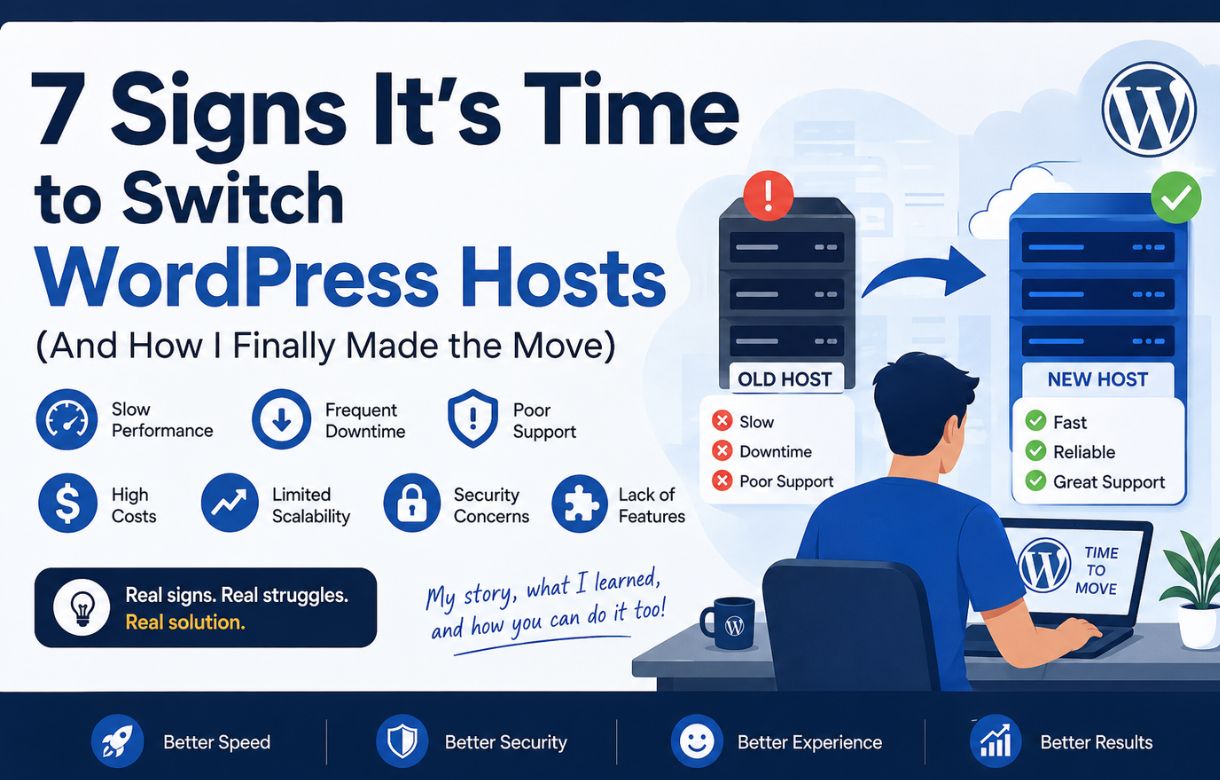
Signs It’s Time to Switch Hosts
The numbers worth checking before you migrate — and the seven signs that say it’s time.
Source: Search Console crawl stats · PageSpeed Insights · personal migration log
Update DNS and expect a short propagation window
DNS changes typically take anywhere from a few minutes to 24-48 hours to fully propagate worldwide. During that window some visitors will still hit the old server — this is normal and not a sign anything’s broken.
Resubmit your sitemap and watch Search Console
Once DNS has settled, resubmit your XML sitemap in Search Console and keep an eye on the Coverage and Performance reports for the next few weeks. A brief, minor fluctuation in crawl stats right after a host migration is normal. A sustained ranking drop is not, and is worth investigating immediately.
Resubmitting isn’t just a formality — I learned that the hard way. A while after a plugin update, my sitemap started throwing a 404, and it turned out to be a conflict with LiteSpeed Cache. Google had no idea, because nothing on the front end looked broken. I only caught it by checking Search Console directly, which is exactly why this step matters after a migration: a broken sitemap and a broken plugin conflict fail silently in exactly the same way, and Search Console is the only place that’ll actually tell you.
Keep the old host active for a buffer period
Don’t cancel your previous plan the moment the new site is live. Keep it running for two to four weeks as a safety net in case DNS caching causes intermittent issues, or you spot something broken that needs the old server as reference.
Ready to check your own host?
Start with the TTFB test above — it takes two minutes and it’s the single most honest number your current host can give you. If it’s already telling you what you suspect, you don’t need one more sign on this list to know what comes next.