Search “Looker Studio templates,” and you’ll get hundreds of results, almost all from companies that sell a connector, a reporting platform, or an agency service. That doesn’t make the templates bad, but it does change how you should read the lists. Most “best templates” posts are written by the people who built the templates.
This roundup is researched, not a hands-on test of every option. I haven’t connected each of these to a live account, and I’d rather say that upfront than imply a level of testing I didn’t do. What I’ve done is look at what each source actually offers, what it’s built for, and what you should check before trusting it with your own data. For the templates I’ve built and used myself, I’ll point you to those posts instead.
How should you choose a template before looking at any list?
Start with the question the template needs to answer, not the template’s design. A few filters narrow the field quickly.
Which data sources does it need? An SEO template usually runs on Search Console, sometimes with GA4 added. A PPC template runs on Google Ads. A combined SEO and PPC template needs two or three sources connected correctly, which is where most of the setup problems come from.
Does it use Google’s native connectors or a third-party one? This is the check people skip. Some templates are built on the native Search Console and Google Ads connectors that Looker Studio includes for free. Others depend on the vendor’s own connector, which may be free only up to a point. The template page should say which, and if it doesn’t, assume you’ll need to find out before you build a workflow around it.
Is it one account or many? A template built for a single site behaves differently from one built for an agency managing several. Retrofitting a single-account template for multiple accounts is more work than starting with the right structure.
How much will you actually use? A template with eight pages looks impressive in a preview. If you only need clicks, impressions, spend, and conversions, the extra pages are clutter you’ll have to hide or delete.
Which Looker Studio templates are worth looking at for SEO reporting?
Porter Metrics’ free SEO dashboard templates
Porter Metrics publishes a series of free dashboard templates, and its own roundup lists an SEO dashboard among them, described as a template SEO professionals and agencies use for monthly reporting. The company says its templates are free and white-label ready, meaning you can add your own logo and colors, which matters if you’re sending reports to clients.
The thing to check here is the connector. Porter is a company that sells data connectors, so confirm on the template page whether the template runs on Google’s native Search Console connector or on Porter’s. The answer decides whether the template stays free for you long term.
A free Search Console template built around the metrics that matter
If you only report on your own site, a lighter template is often the better fit. I built one around exactly four views: a clicks-and-impressions trend, a CTR-by-page table, a position-by-page table, and a date comparison. It’s covered in my free Looker Studio template for Search Console data post, which also explains how to copy it into your own account.
The reasoning behind that short list is in Looker Studio SEO Dashboard: What Metrics Actually Matter. If you’d rather understand each piece than copy a finished one, How to Connect Google Search Console to Looker Studio walks through the build from scratch.
Adding keyword tracking on top
Most free SEO templates stop at page-level data. If you want to watch specific keywords move, you don’t need a different template; you need a filtered view added to the one you have. How to Track Keyword Rankings in Looker Studio Without Paying for Ahrefs/Semrush covers that setup, along with the limits of using Search Console’s average position as a stand-in for a rank tracker.
Which templates are worth looking at for PPC reporting?
Coupler.io’s Google Ads templates
Coupler.io, a reporting automation platform, offers a set of Google Ads Looker Studio templates that its own listing describes as free. They include an overview dashboard, a monthly performance template, a keyword performance template, and multi-channel versions that cover Google Ads alongside Facebook, LinkedIn, Instagram, and TikTok ads.
That range is the useful part. A single-account advertiser can use the overview or monthly version, while someone running several ad platforms has a multi-channel option. As with any vendor template, check how the data gets in. Coupler.io’s business is moving data from sources into reporting tools, so find out whether the template expects its importer or Google’s native Google Ads connector.
Porter Metrics’ Google Ads and PPC templates
Porter’s list covers more than one Google Ads layout, including an overview, a Performance Max view, keyword analysis, funnel, audience, campaign performance, and peak hours. A separate set covers multi-channel PPC. If you run Performance Max campaigns, having a template built for that campaign type is a real advantage, since the standard campaign layout doesn’t always map cleanly onto it.
Data Bloo’s combined templates
Data Bloo publishes Google Ads report examples, including a “total search” layout that puts paid and organic traffic side by side by combining GA4, Search Console, and Google Ads in one template. It also describes a paid media mix layout that compares Google with Facebook ads. The company sells these as part of a template bundle, so treat this one as a paid option and check current pricing on their site, since I haven’t verified it.
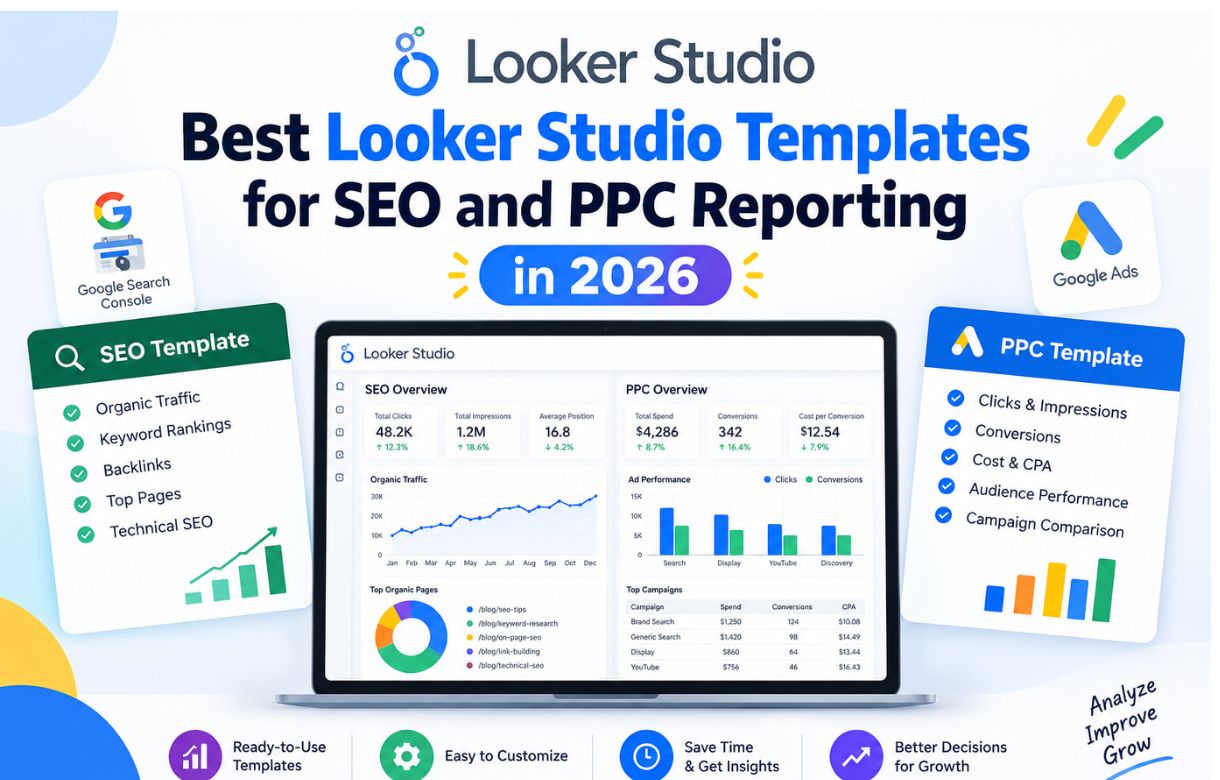
The combined layout is the interesting idea. If you run both SEO and ads for the same site, seeing paid and organic traffic in one report answers questions neither channel can answer alone. It’s also the setup most likely to break, because three sources have to line up on date ranges and definitions.
Directive Consulting’s free template list
Directive Consulting’s roundup of free Looker Studio templates isn’t a single template but a curated collection, including a Google Ads template, a consolidated PPC template and a KPI snapshot template. The KPI snapshot needs Google Ads, Google Analytics, and Search Console connected, which makes it one of the few free options that spans both channels. It’s a good place to browse if you want to see several layouts before committing to one.
Looker Studio templates for SEO and PPC in 2026
Researched from each vendor’s own pages, not hands-on tested. Check the details yourself before you connect your data.
What each source offers
Porter Metrics
SEO, Google Ads and multi-channel PPC templates, described as white-label ready.
Check: does it run on Google’s native connector or Porter’s own?
Coupler.io
Overview, monthly performance, keyword and multi-channel Google Ads templates.
Check: does it expect Coupler.io’s importer or the native Google Ads connector?
Data Bloo
A total search layout puts GA4, Search Console and Google Ads in one report.
Check: current pricing, which I haven’t verified. Three sources must also match on dates and definitions.
Directive Consulting
A curated collection. Its KPI snapshot needs Google Ads, Google Analytics and Search Console connected.
Check: it’s a list to browse, not a single template.
My free Search Console template
Four views only: clicks and impressions trend, CTR by page, position by page, and a date comparison.
Good for: reporting on your own site without extra pages to hide.
Check these in order before you connect your data
- 1Compare the top-line numbers against Google Ads or Search Console for the same dates.
- 2Click through every chart. A single unmapped field shows zeros while the rest looks fine.
- 3Switch to a rolling date range so the report doesn’t freeze on one period.
- 4Confirm currency and account level if you manage more than one Google Ads account.
Where to start
Looker Studio itself is free. Templates vary, so always find out which connector a template depends on.
What about the free versus paid decision?
I covered this in detail in Looker Studio Templates for Google Ads Reporting (Free vs Paid), so I won’t repeat the whole argument. The short version: for one or two accounts, a free template you customize usually beats paying, and for agency-scale multi-account blending, a well-reviewed paid template can save real time.
What matters more than price is whether the template solves the part you find hard. Layout is easy to fix yourself. Multi-account blending, currency handling, and conversion counting are the parts worth paying someone else to have solved.
What should you check before connecting your own data to any template?
Do these checks in order, because the first one catches the most problems.
Compare the top-line numbers against the source. After connecting, check total spend, clicks, and conversions against the native Google Ads interface for the same date range. For SEO templates, check clicks and impressions against Search Console. If they don’t match, stop and find out why before trusting any chart.
Click through every chart. A copied template often leaves one or two fields unmapped, and the result is a single chart showing zeros while everything else looks fine. The glance test doesn’t catch this.
Check the date range. A template with a fixed range will keep showing the same period forever. Switch it to a rolling range before you rely on it.
Look at currency and account level. If you manage more than one Google Ads account, confirm each account’s currency and that you’ve connected the sub-account rather than the manager account. Both mistakes are covered in Looker Studio for PPC: Common Mistakes When Connecting Google Ads Data, which is worth reading before you roll any template out across several accounts.
When is building your own better than using a template?
If you’re reporting on a single site or a single ad account, building your own takes about an hour and gives you a dashboard you understand completely. That understanding has a practical payoff: when a number looks wrong, you know where to look.
For the PPC side, How to Build a Google Ads Performance Dashboard in Looker Studio shows the build from scratch. Starting from a template makes more sense when you need the same layout repeated across many accounts, which is also where automating the delivery pays off, as I explain in How to Automate Client PPC Reports Using Looker Studio.
Is there a single best template overall?
No, and I’d be skeptical of any list that names one without asking what you’re reporting on. The right template for a solo blogger checking Search Console weekly is different from the right one for an agency sending monthly reports to ten clients.
If I had to give a starting point by situation: a solo site owner should start with a simple Search Console template and add keyword tracking later. A small business running ads should start with a free Google Ads overview template and verify the numbers against the native interface. An agency should look at multi-account and white-label options first, and test any paid one on a single account before rolling it out.
FAQ
Are Looker Studio templates really free?
Looker Studio itself is free, and many templates are offered at no cost. The catch is that some depend on a vendor’s own connector, which may have usage limits or a paid tier. Check which connector a template uses before building anything on it.
Can I use one template for both SEO and PPC reporting?
Yes, combined templates exist that pull Search Console, GA4, and Google Ads into one report. They’re more complex to set up and more likely to show mismatched numbers if date ranges or definitions don’t line up, so verify each source separately before trusting the combined view.
How do I know if a template is out of date?
Look for a recent update date if the listing shows one, and test it on your own data. A template built against an old connector version can show blank charts where a renamed field used to be.
Do I need Google Analytics in my SEO template?
Not to start. Search Console covers rankings, impressions, and clicks on its own. Add GA4 once you want to know what happens after the click, and see Looker Studio vs Google Analytics: Which Should You Use for SEO Reporting? for when that’s worth doing.
Is white-labeling important?
Only if you send reports to clients. For your own reporting, it makes no difference. For agency use, check that a template supports custom logos and colors before you commit to it.