If you’ve landed here searching for “Amazon Vine login,” you’ve probably noticed something confusing: there’s no dedicated Vine username, no separate password, and no public sign-up form. That’s not a glitch — it’s how the program is built. This guide walks through exactly how the login works for reviewers and sellers, why you might not be seeing the Vine dashboard, and what to do about it.
What Is Amazon Vine?
Amazon Vine is an invitation-only review program. Amazon hand-picks trusted reviewers — called Vine Voices — based on their history of writing helpful, detailed reviews. Those reviewers can then request products from participating sellers, receive them free of charge, and post an honest review in return. Every Vine review carries a green “Vine Customer Review of Free Product” badge so shoppers can tell it apart from a standard purchase review.
On the other side of the program, sellers enroll their products through Seller Central, paying a per-product fee to get their items in front of Vine Voices before — or shortly after — launch.
Both sides log in with the same Amazon account they already use. There is no separate Vine account to create.
Amazon Vine Login — Quick Facts
Everything to know before you sign in, whether you’re a reviewer or a seller.
Getting In
Program Type
Invite-only
Paid enrollment for sellers
Login Credentials
Your Amazon account
No separate Vine password
Reviewer Access
vine.amazon.com
Or your invite-email link
Seller Access
Seller Central
Advertising → Vine
Program Basics
Launched
2007
Run entirely by Amazon
Available In
8 countries
US, CA, UK, FR, DE, IT, ES, JP
Dedicated App
None
Browser or Amazon Shopping app
Tiers & Money
Silver Tier
3 / day
Products ≤ $100
Gold Tier
8 / day
No value cap
Tax Form
1099-NEC
If value exceeds $600/yr (US)
How to Log In to Amazon Vine as a Reviewer
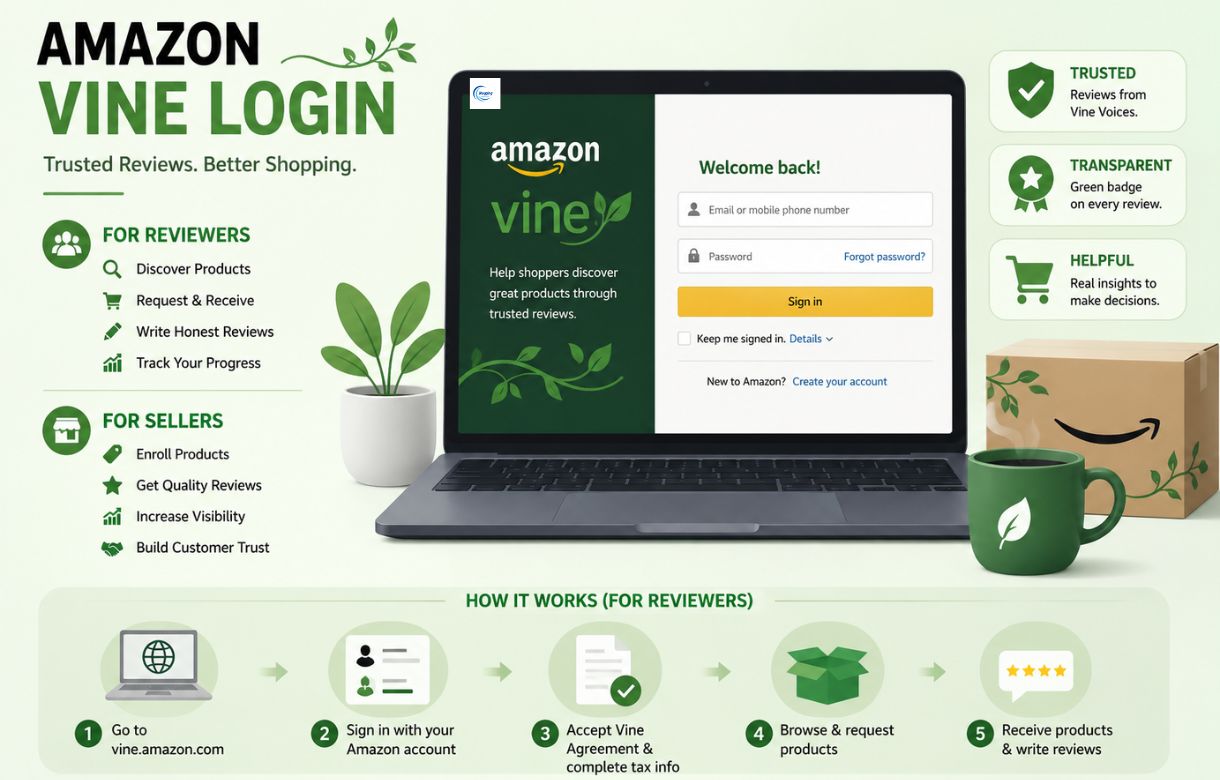
If you’ve already received a Vine invitation, signing in takes just a few steps:
- Go to vine.amazon.com, or click the direct link from your invitation email.
- Sign in with your regular Amazon email and password — the same credentials you use to shop.
- Complete two-step verification if you have it enabled on your account.
- Accept the Vine Participation Agreement on your first visit. This covers review deadlines, completion-rate requirements, and tax obligations.
- Complete your tax interview if you haven’t already. Amazon won’t activate full access to the program until your tax information is validated.
Once you’re in, the dashboard is organized around a few key sections: products available to you, your active orders, shipping status, and review deadlines.
If the Vine option doesn’t appear at all after you sign in, it almost always means one thing: your account hasn’t received an invitation yet. There’s no workaround for this — Vine access can’t be requested or purchased by reviewers.
Is There an Amazon Vine App for Amazon Vine Login?
No. Amazon Vine does not have its own standalone app for Amazon Vine login. You access it in one of two ways:
- Through a browser, by going to vine.amazon.com on a desktop or mobile device
- Through the Amazon Shopping app, though the mobile layout is limited compared to the desktop version
If you’re primarily on your phone, many Vine Voices recommend switching your mobile browser to “desktop site” mode (an option in most browser menus) rather than relying on the Amazon Shopping app. The desktop view shows more products at once and renders the request buttons more reliably, which matters because popular items can disappear within seconds of being listed.
How to Get Invited to Amazon Vine
There’s no application form, no sign-up page, and no fee that buys reviewer access. Amazon’s internal algorithm selects Vine Voices based on a combination of signals:
- Review quality — detailed, specific reviews that mention real pros and cons, not one-line comments
- Helpful votes — feedback from other shoppers who found your reviews useful
- Consistency — regular reviewing activity over time, rather than a short burst
- Account standing — a verified purchase history and a clean account record
If you want to improve your odds, the most reliable approach is simply to write thorough, honest reviews on products you’ve actually bought — including photos where relevant — and do it consistently. There’s no shortcut, and any third-party site offering to “get you into Vine” for a fee isn’t affiliated with Amazon.
When an invitation does arrive, it comes by email, so it’s worth checking your spam folder periodically if you suspect you might be eligible.
Amazon Vine Products: What You Can Actually Request
Once you’re in, the product catalog is genuinely broad — electronics, home goods, beauty, supplements, books, kitchen tools, and more get added daily. What you can request depends on your tier:
Silver Tier (entry level)
- Up to 3 items per day
- Products are capped at roughly $100 in value
Gold Tier (upgraded)
- Up to 8 items per day
- No value cap — higher-end electronics and appliances become available
To move from Silver to Gold, Amazon’s official guidance is that you need to review at least 80 Vine items and complete at least 90% of your orders within your evaluation period (the window shown on your account page). To stay in Gold, that threshold rises to roughly 100 reviewed items at the same 90% completion rate.
Across all tiers, Amazon expects a minimum review completion rate to keep your account in good standing — fall below it and new recommendations get paused, with the account at risk of closure if the pattern continues.
A practical note from experienced Vine Voices: not everything in the catalog is worth requesting. A good share of listed products come from unfamiliar overseas brands looking for fast review volume. Using the search bar to look for specific categories tends to surface better finds than scrolling the general feed.
Amazon Vine Login for Sellers
If you’re trying to log in to Vine as a seller rather than a reviewer, the path is different:
- Sign in to Seller Central with your professional selling account.
- Hover over Advertising in the main menu and select Vine.
- Search for the product by ASIN, or browse Amazon’s recommended candidates.
- Specify how many units (up to 30 per parent ASIN) you want available to Vine Voices.
- Confirm enrollment and track progress from the Vine dashboard.
To see the Vine option in Seller Central at all, your account needs:
- An active Professional selling plan
- Brand Registry enrollment (or eligible generic-catalog products)
- Products fulfilled by FBA, listed as new, with fewer than 30 existing reviews
On cost: Amazon’s enrollment fee is tiered by unit count — free for 1–2 units, scaling up to $200 per parent ASIN for 11–30 units. According to Amazon’s own seller program page, you’re not charged until 30 days after enrollment and only after your first Vine review publishes. If no review comes in within 90 days of enrollment, you aren’t charged at all.
Amazon Vine Login Not Working? Common Fixes
When you are trying for the Amazon Vine login, most sign-in issues trace back to one of these causes:
You’re signed into the wrong Amazon account. This is especially common if you have both a personal and a business Amazon account. Sign out completely and sign back in with the exact account that received your Vine invitation (or, for sellers, the account tied to your enrolled listings).
Your account hasn’t been invited or doesn’t meet seller eligibility. No error message says this outright — the Vine option simply won’t appear. Double-check the eligibility points above before assuming it’s a technical fault.
Browser issues. Clear your cache and cookies, or try an incognito/private window. Vine’s dashboard is also known to render inconsistently on mobile, so switching to a desktop browser resolves a lot of layout-related sign-in confusion.
Two-step verification problems. If you’ve recently changed your phone number or lost access to your verification method, you’ll need to go through Amazon’s standard account recovery process before Vine access will work again.
“Is Amazon Vine Down Today?”
Amazon Vine runs on the same infrastructure as the rest of Amazon.com, so a true platform-wide outage is rare and would typically affect Amazon.com broadly, not just Vine. If only the Vine dashboard seems unavailable while the rest of Amazon works fine, it’s far more likely to be an eligibility or browser issue than an actual outage. If you suspect a genuine service disruption, checking a real-time status tracker or Amazon’s official channels is more reliable than guessing.
Also Read: Why Use Fidzholikohixy: Real Results for Real Needs
Amazon Vine Customer Service
Amazon doesn’t run a separate support line for Vine. To get help:
- Reviewers can contact standard Amazon Customer Service through the Help section of their account, referencing “Amazon Vine” in the request.
- Sellers should use Seller Central’s Case Log under the Help menu, which routes Vine-specific issues (billing, enrollment errors, ASIN eligibility) to the appropriate team.
Having your account email, the relevant ASIN, or a case ID ready speeds up resolution significantly.
Do You Pay Taxes on Amazon Vine Products?
For US-based Vine Voices, yes. Products received through Vine count as taxable income at their fair market value, and Amazon will issue a 1099-NEC if your total exceeds $600 in a calendar year. That value is based on the product’s list price at the time you claimed it — not its actual market price or any discount it may have had. Some categories, like grocery, pet food, and basic beauty items from third-party sellers, are typically valued at $0, while books are generally valued at 99 cents. Amazon collects your tax information upfront, before your account is fully activated, specifically so it can meet these reporting requirements.
If you’re an active Gold-tier reviewer claiming higher-value electronics regularly, it’s worth tracking your running total through the year rather than being surprised by it in January.
Bottom Line
The “Amazon Vine login” itself isn’t complicated — it’s your regular Amazon account, accessed at vine.amazon.com for reviewers or through Seller Central’s Advertising menu for sellers. What trips people up is eligibility, not the sign-in process: reviewers need an invitation they can’t request directly, and sellers need a properly configured Professional and Brand Registry account before the option even appears. Once you clear that bar, the rest of the program — browsing products, claiming items, tracking reviews — is straightforward from there.
FAQ: Amazon Vine Login
Do I need a separate password for Amazon Vine?
No. You sign in with your existing Amazon account email and password — there’s no separate Vine login.
How do I get an Amazon Vine invitation?
You can’t apply. Amazon’s algorithm selects reviewers based on review quality, helpfulness votes, and consistent activity. Invitations arrive by email.
Is there an Amazon Vine app?
No dedicated app exists. Access Vine through a browser at vine.amazon.com, or through the Amazon Shopping app, though the desktop browser experience is more reliable.
Can I sell or return products I get through Vine?
No. Vine products are provided in exchange for a review, and reselling them violates the program’s terms.
What’s the difference between the Silver and Gold tiers?
Silver allows up to 3 item requests per day from products valued at $100 or less. Gold allows up to 8 requests per day with no value cap, but requires a higher review volume and completion rate to maintain.
Why can’t I see the Vine option in Seller Central?
You need an active Professional selling account, Brand Registry enrollment (or eligible generic products), and FBA-fulfilled listings with fewer than 30 existing reviews.
Does Amazon Vine cost anything for reviewers?
No. Products are free to Vine Voices, though their value may be reportable as taxable income.