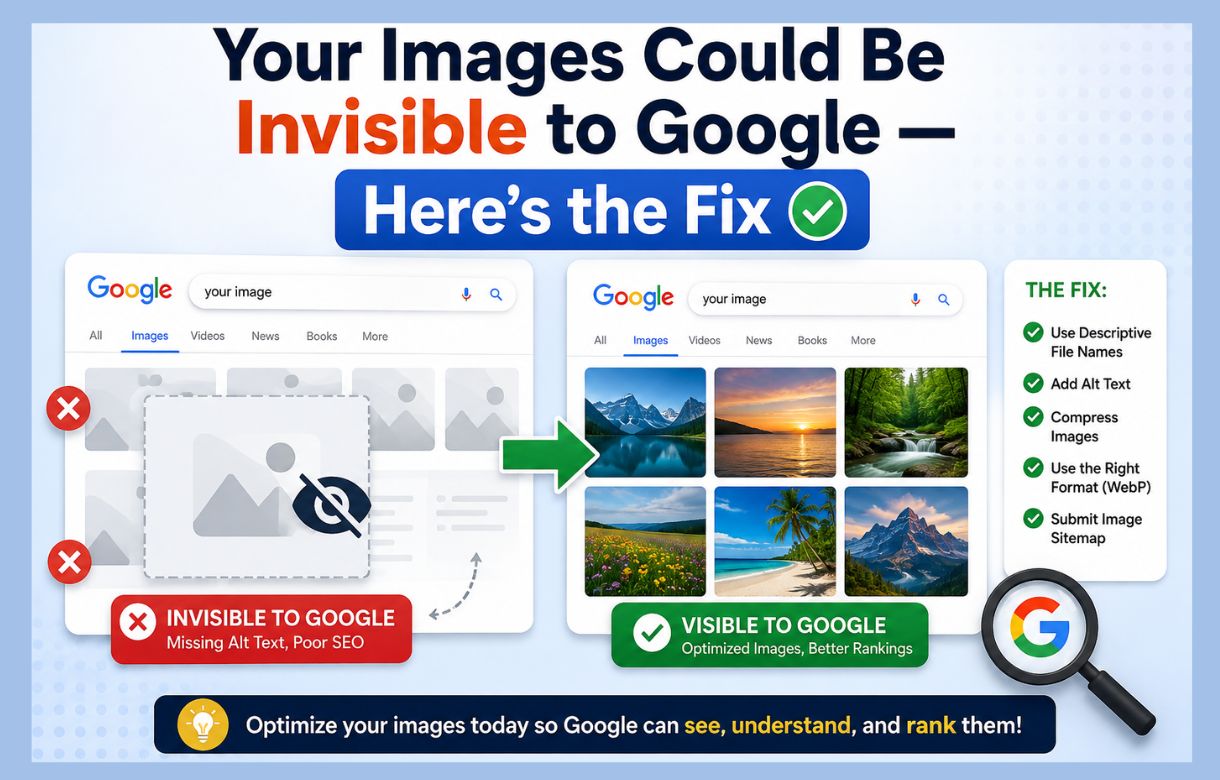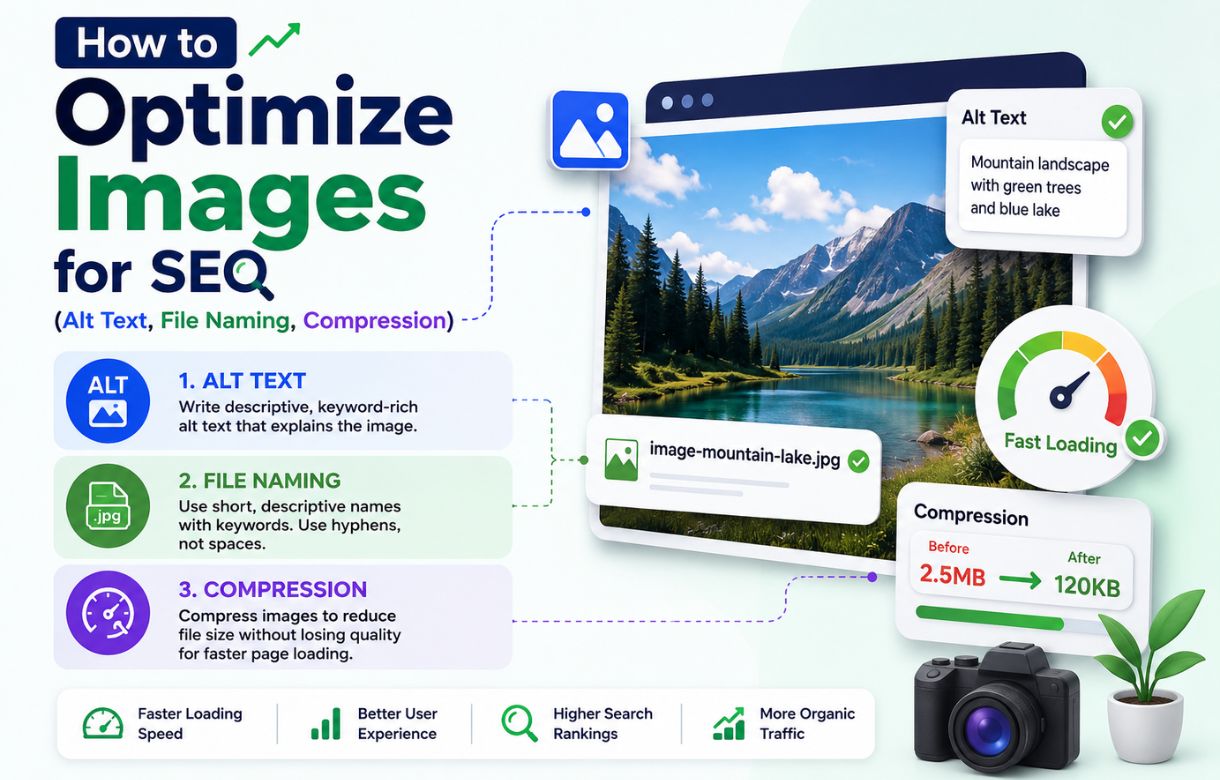
Most “image SEO” advice stops at “add alt text.” That’s one item on a longer checklist, and treating it as the whole job is why so many blogs still ship images named Untitled-design-91.jpg with alt text that just repeats the post title.
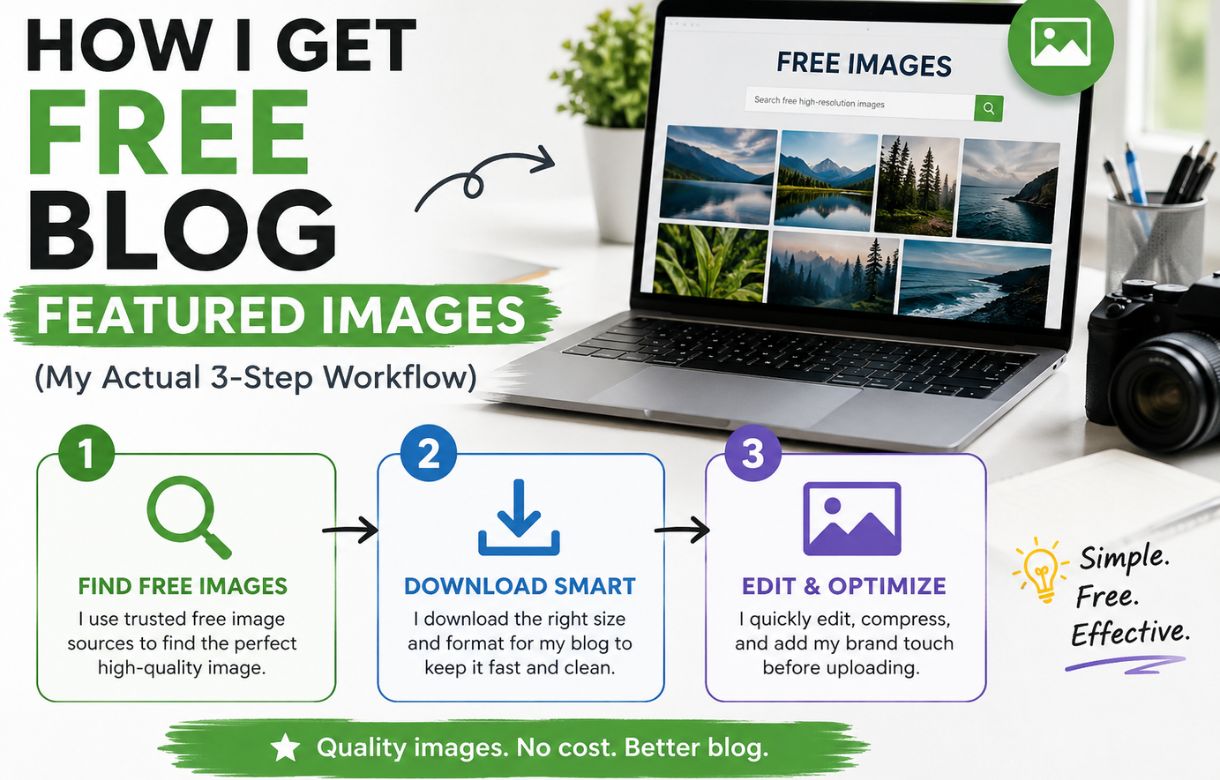
I already covered how I actually source and compress my featured images — Unsplash, ChatGPT, Canva. This post is the next layer: what happens to an image between “it’s compressed” and “it’s actually pulling its weight for SEO.” Four things matter here, and I’m walking through them in the order I do them, not the order most checklists list them.
Why alt text isn’t the whole job
Alt text gets all the attention because it’s the most visible, most talked-about piece — screen readers use it, Google uses it for image search context, and it’s an easy line item to check off. But an image with perfect alt text and a 3MB file size sitting on a filename like IMG_4821.jpg is still an image search engines and page speed both struggle with. Alt text describes the image. File naming and compression determine whether the image performs at all.
Step 1: Name the file before you upload it, not after
This is the step people skip most often because it feels irrelevant once the image already looks right. It isn’t. Google reads filenames as a ranking signal for image search, and a genuinely descriptive filename also makes an image easier to find again in your own media library six months later.
What actually makes a good filename?
Descriptive, lowercase, hyphen-separated, and specific to what’s actually in the image — canva-image-compression-before-after.jpg, not image1.jpg or blog-post-final-v2.jpg. I do this in Canva before export, at the same time I’m resizing and compressing, so it never gets forgotten as a separate step later.
Keyword-stuffing the filename doesn’t help — best-free-seo-tools-2026-seo-blog-seo-marketing.jpg reads as spam to Google the same way a stuffed title tag would. One or two words that genuinely describe the image is the whole standard.
Step 2: Write alt text for the image, not for the keyword
Alt text exists first for accessibility — it’s what a screen reader announces in place of an image that hasn’t loaded or can’t be seen. SEO value follows from doing that job well, not from treating the alt attribute as a second title tag to cram a keyword into.
What should alt text actually say?
Describe what’s literally in the image, briefly. “Canva export settings panel showing file size reduced from 2MB to 180KB” tells both a screen reader and Google exactly what’s there. “Best free image compression tool 2026” tells neither anything useful — it’s a keyword wearing an alt-text costume, and Google’s image algorithms are well past rewarding that.
Empty alt text (alt="") is correct, not lazy, for purely decorative images that add nothing to the content — a background texture or a divider graphic. Forcing a description onto an image with no informational content just adds noise for screen reader users.
Step 3: Get the dimensions right before upload, not after
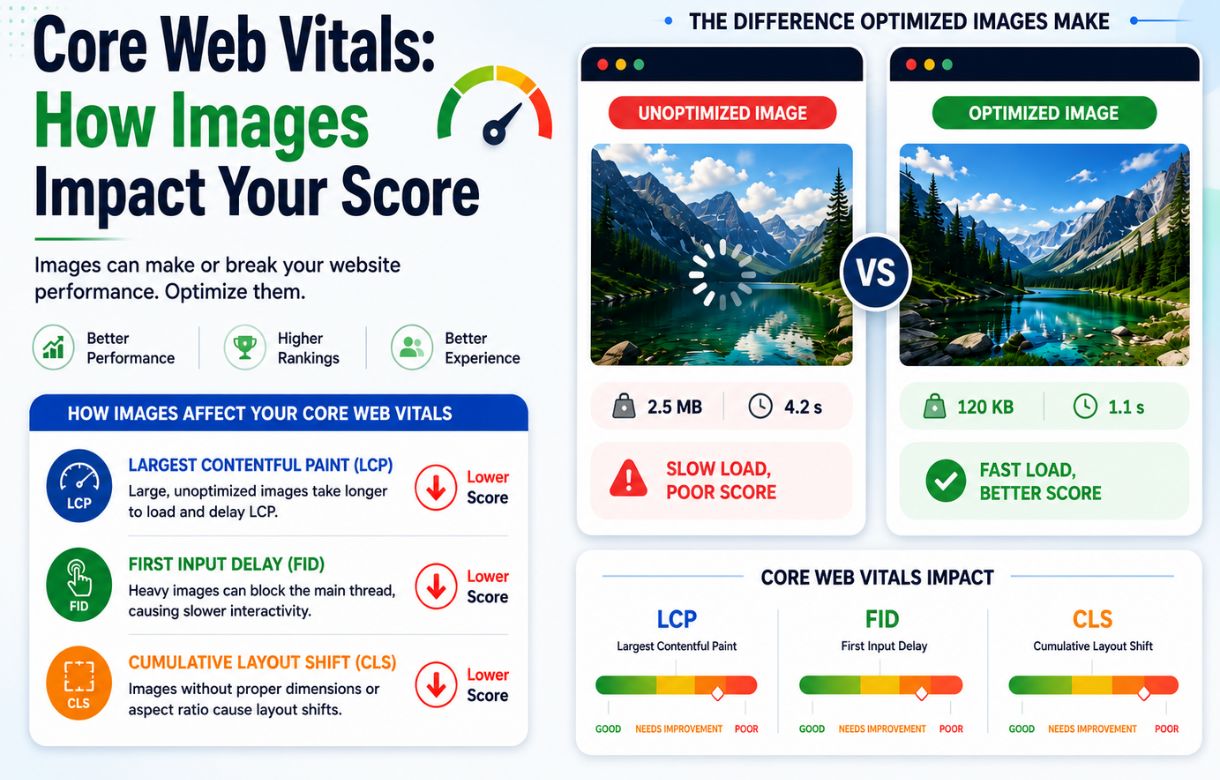
Uploading an oversized image and letting your theme resize it in the browser is one of the most common ways a page quietly fails Core Web Vitals — specifically Cumulative Layout Shift, when the browser doesn’t know the image’s real dimensions until it’s already partway loaded.
Set the image to the actual pixel dimensions your theme displays it at before you upload — this is part of the same Canva step where I’m already resizing and compressing, so it costs nothing extra once it’s built into the workflow.
Step 4: Compression and format — the part with the numbers
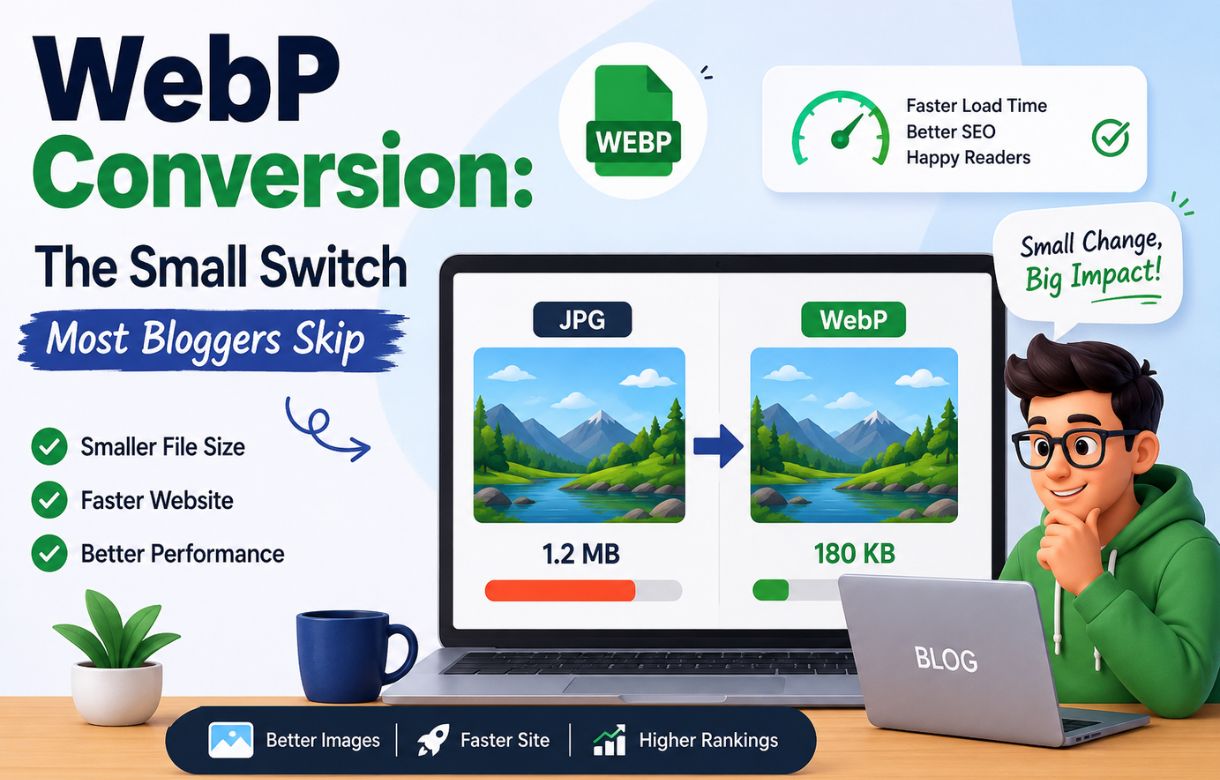
I’ve written about this in detail already: Canva’s export settings typically take a raw 2MB image down to somewhere around 150–200KB with no visible quality loss. The format you export in matters here too — a WebP export will typically come in smaller again than the same image saved as JPG, for the same visual quality.
Does compressing images actually move the needle on rankings?
Indirectly, yes. Page speed and Core Web Vitals are confirmed ranking factors, and images are consistently one of the heaviest elements on a typical blog page. Compression doesn’t rank a page by itself, but an uncompressed image is one of the easiest ways to quietly cap how well an otherwise well-optimized post can perform.
Where this fits with image sitemaps
Everything above helps an individual image perform once someone’s already looking at your page. Getting that image to actually surface in Google Image search in the first place is a separate, related question — that’s what image sitemaps handle, and it’s worth understanding even if your SEO plugin generates one for you automatically.
Key Facts: Image SEO Checklist
- Filename: descriptive, lowercase, hyphen-separated, set before upload — not a keyword-stuffed string.
- Alt text: describes what’s literally in the image for accessibility first; SEO value follows from doing that honestly. Empty alt text is correct for purely decorative images.
- Dimensions: set to actual display size before upload to prevent layout shift, not resized after the fact by the theme.
- Compression + format: ~2MB down to 150–200KB via Canva export settings; WebP typically compresses further than JPG at equivalent quality.
- Order matters: all four are handled at export time in Canva, not as separate after-the-fact cleanup steps.
FAQ
Does alt text still matter for SEO in 2026?
Yes, but as one accessibility-first signal among several, not the whole strategy. It helps Google understand image context and helps screen reader users, but it won’t compensate for an unoptimized filename, oversized dimensions, or an uncompressed file.
Do image filenames actually affect Google Image search rankings?
Yes — filenames are one of the contextual signals Google uses to understand what an image shows, alongside alt text and surrounding page content. A generic camera-default filename gives Google nothing to work with.
Should I put keywords in my image filenames?
Only if they genuinely describe the image. One or two accurate, specific words beat a keyword-stuffed filename every time — Google’s image algorithms treat over-optimized filenames as a spam signal, not a ranking boost.
Is WebP always better than JPG for SEO?
For file size and load speed, generally yes. The one thing to check is that your WordPress theme and any image plugins actually support WebP rendering — most modern setups do, but it’s worth confirming rather than assuming.