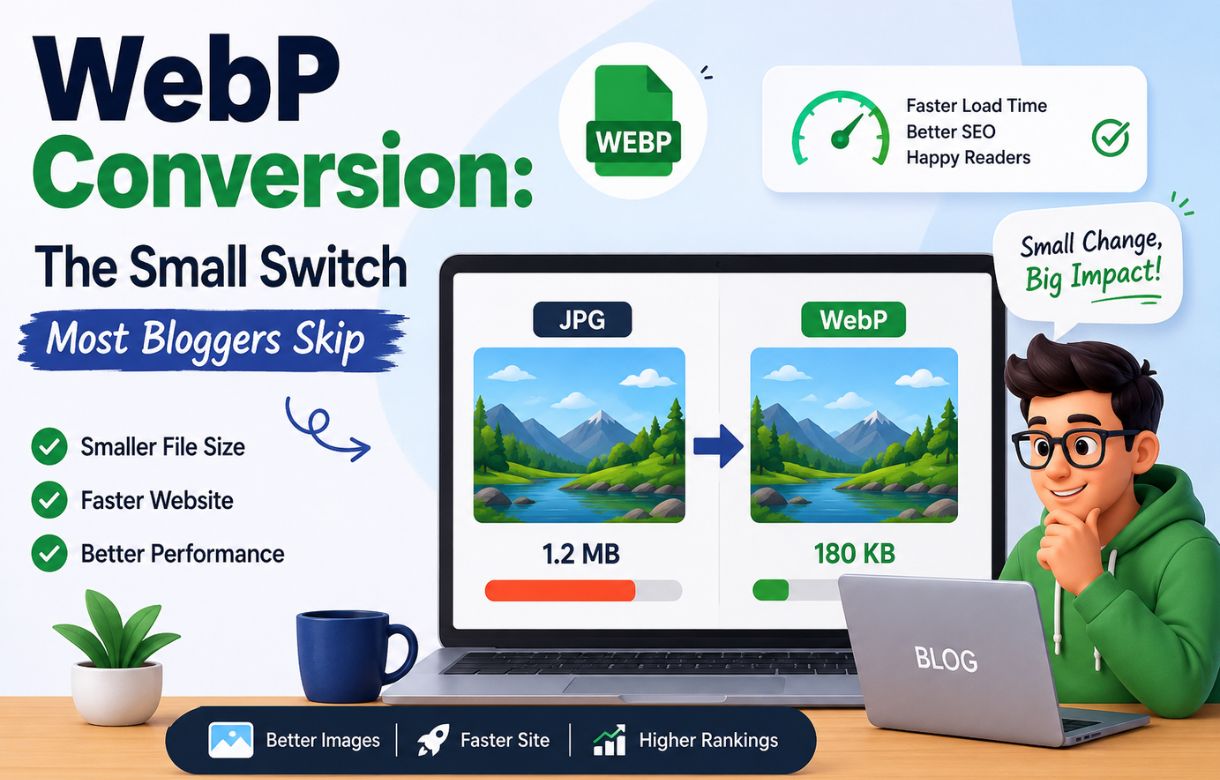
For a while I exported everything out of Canva as JPG, because that’s the default and nobody tells you to change it. Then I actually compared file sizes side by side — same image, same visual quality, JPG vs. WebP — and the difference was big enough that I switched for good. This is what WebP actually is, why it’s smaller, and the two ways I convert images now depending on where they’re coming from.
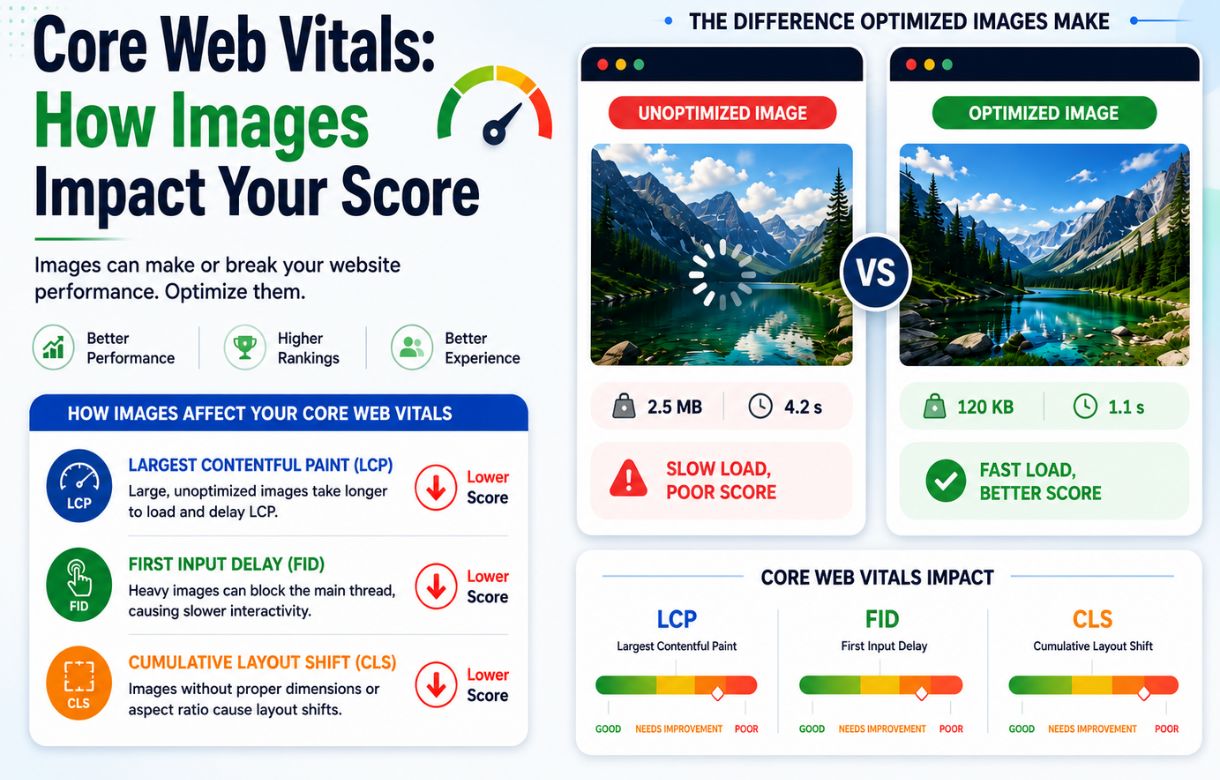
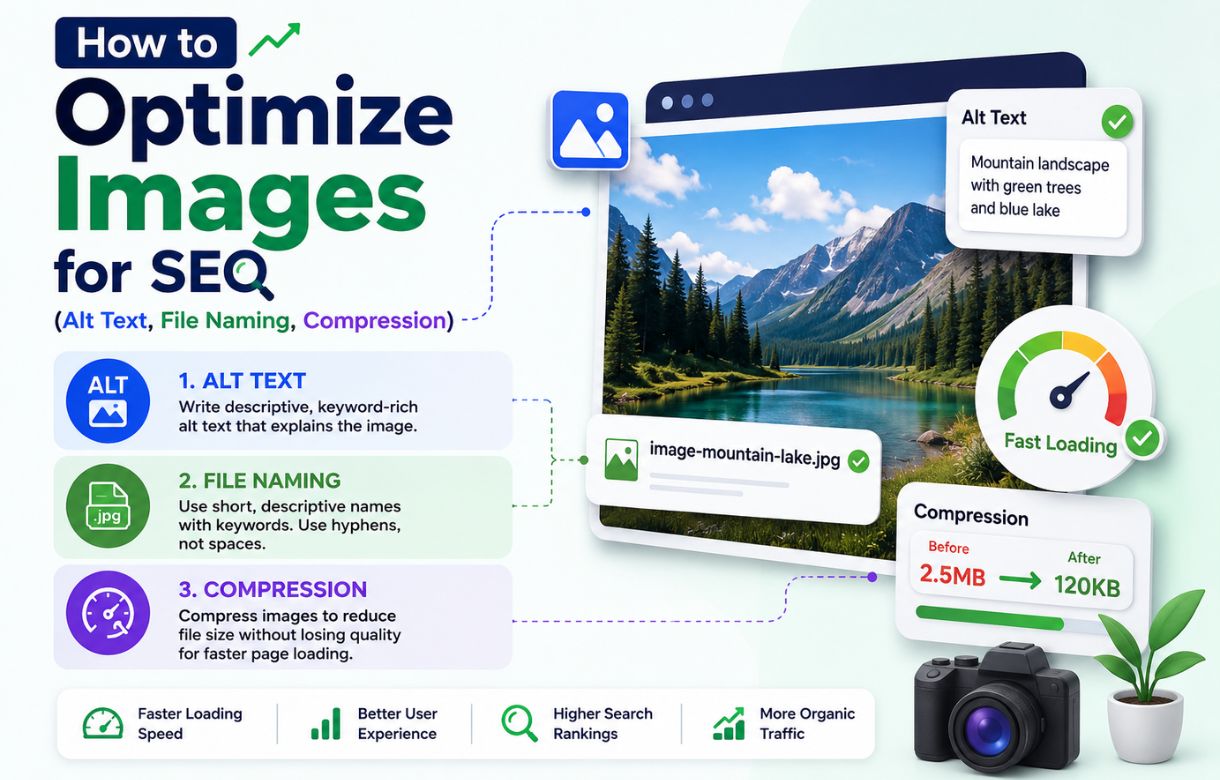
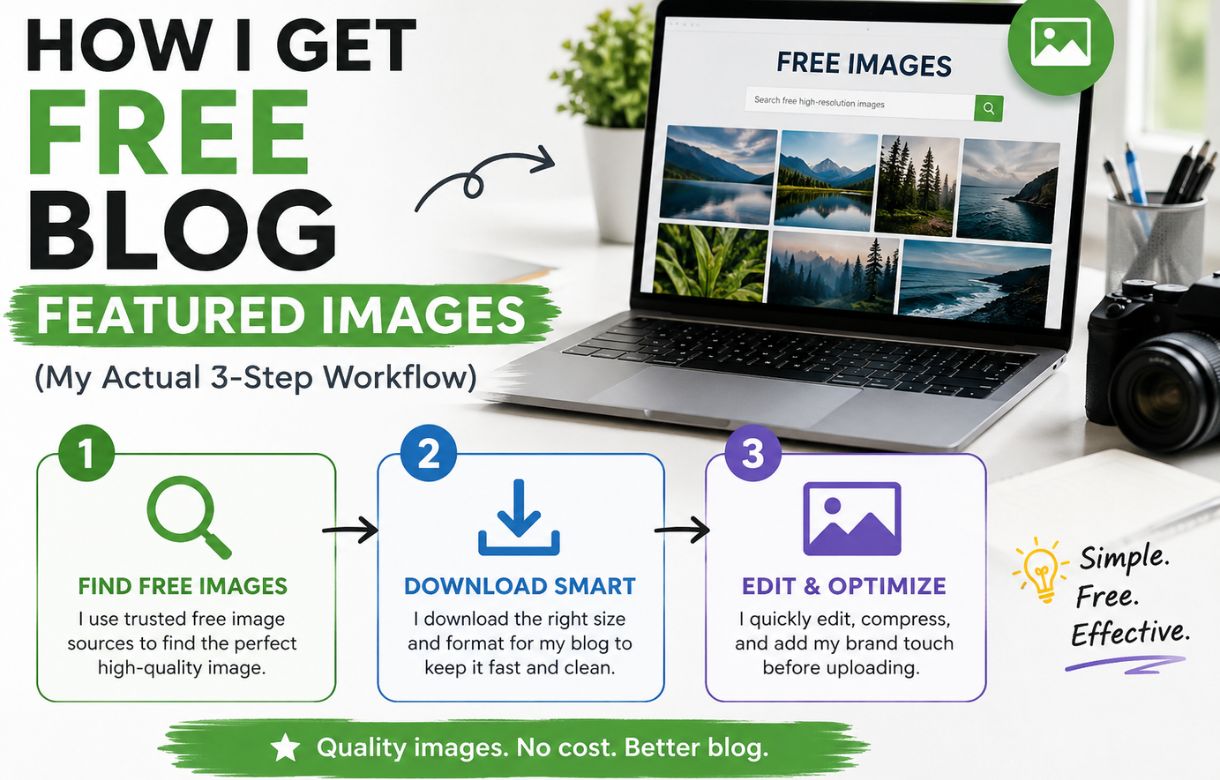
This is part of the same cluster as how I source my images, how I optimize them for SEO, how I fix sitemap issues regarding image visibility to Google, and how they affect Core Web Vitals — format is the last piece of that puzzle.
What WebP actually is
WebP is an image format Google developed specifically to replace JPG and PNG with something smaller at equivalent visual quality. It supports both lossy compression (like JPG) and lossless compression (like PNG), plus transparency, which JPG can’t do at all. For a blogger, the practical summary is simpler than the technical one: same-looking image, smaller file.
Why is WebP smaller than JPG?
WebP uses more efficient compression algorithms than JPG’s decades-old standard. In practice, that generally works out to noticeably smaller file sizes than a JPG of comparable visual quality — the exact percentage varies by image, but the difference is consistently in WebP’s favor, which is why Google’s own PageSpeed Insights recommends it as a fix for slow-loading images.
Do I need to worry about browser support?
Not really, not anymore. WebP is supported by every major browser at this point — Chrome, Firefox, Safari, and Edge all render it natively. This used to be a real concern years ago when Safari lagged behind; it isn’t one now. If you’re on a reasonably current WordPress theme, WebP should just work without any special handling on your end.
How I convert images to WebP
Straight from Canva
This is the simplest path, and it’s the one I use for anything I’ve already built or customized in Canva — which, given my regular workflow, is nearly everything. —.Canva’s own download menu doesn’t actually include WebP as an export option — it’s limited to JPG, PNG, PDF, and SVG. What Canva does offer instead is a separate WebP Converter tool: I export my image as JPG first (best for the text overlays and illustration-style graphics I’m usually working with), then run that file through the converter to get the WebP version. It’s one extra step, not zero, but it still takes seconds and doesn’t require leaving Canva or installing anything new.
Converting existing images already on the site
For older posts with images already uploaded as JPG or PNG, re-exporting from Canva isn’t always practical if the original file isn’t handy. In that case, a WordPress plugin that handles WebP conversion automatically on upload (or retroactively across your media library) does the job without manually touching every file. Most modern SEO and performance plugins include this as a feature, or offer a dedicated WebP-conversion plugin as an add-on — worth checking what your current stack already supports before adding another plugin.
Does converting to WebP affect image quality?
Not noticeably, at the compression levels a blog featured image actually needs. WebP’s lossy compression at moderate settings looks essentially identical to a JPG of the same visual weight, while landing at a meaningfully smaller file size. Where you’d notice a difference is pushing compression too aggressively in either format — that’s a compression-level problem, not something specific to WebP.
Does WebP actually help Core Web Vitals?
Yes, directly through LCP. Since Largest Contentful Paint is measuring how fast the largest element on the page loads, and that element is usually your featured image, a smaller file at the same visual quality gets you a faster LCP score for free — no other change required.
Key Facts: WebP Conversion
FAQ
Is WebP better than JPG for SEO?
Indirectly, yes — not because Google ranks WebP files higher directly, but because the smaller file size improves page load speed and Core Web Vitals, both of which are confirmed ranking factors.
Will converting my images to WebP break anything on my site?
Unlikely on a current WordPress setup. The main thing worth checking is whether any plugin or custom code on your site explicitly expects JPG or PNG files (rare, but possible with older themes) — test on a single post first if you’re converting your whole media library at once.
Should I convert every image on my site to WebP, or just new ones?
Start with new images going forward, since that’s zero extra effort once it’s built into your export habit. Converting the existing library is worth doing eventually, especially for high-traffic posts, but it’s a bigger one-time task and not urgent if those older images are already reasonably compressed.
Does WordPress support WebP natively?
Yes, since WordPress 5.8, WebP images can be uploaded directly through the media library without a plugin. Whether your specific theme displays them without issue is worth a quick check, but the core platform support is already there.