I’ve been using Rank Math on this site for a while now, and I still remember how overwhelming the settings panel felt the first time I opened it. There are tabs inside tabs, toggles with no explanation, and a setup wizard that moves fast if you’re not sure what you’re choosing.
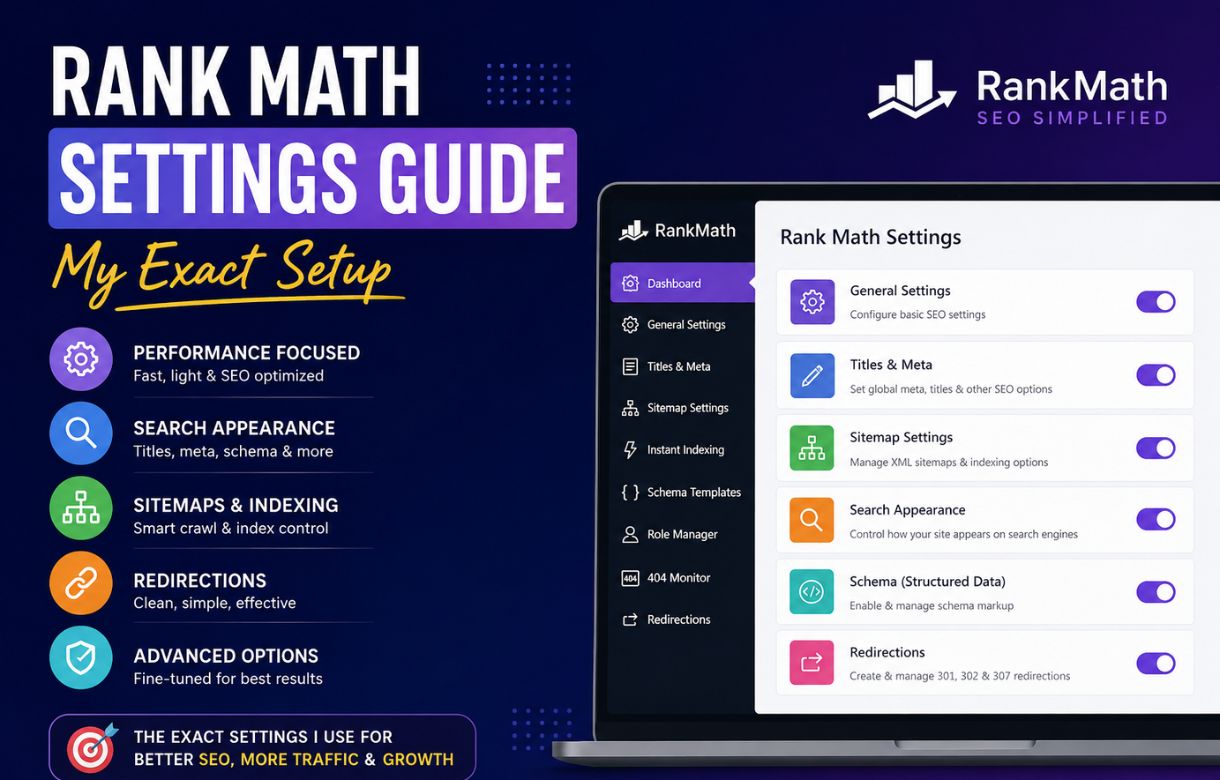
This isn’t a list of “recommended settings” pulled from Rank Math’s own documentation. These are the exact settings I run on this site, what I changed from default, what I left alone, and why — so you’re not guessing your way through it like I had to.
This post is part of my WordPress Tools for Bloggers series. If you’re deciding between Rank Math and Yoast before you even get to settings, I’ll have a full comparison here: Rank Math vs Yoast.
How to Install and Activate Rank Math
If you already have Rank Math running, skip straight to the settings section below.
- From your WordPress dashboard, go to Plugins → Add New, search “Rank Math SEO,” and click Install Now.
- Once installed, click Activate.
- Rank Math will launch its Setup Wizard automatically. You can run through it for the basic setup, but I’d recommend not overthinking this step — the settings that actually matter are the ones we’re covering below, and you can revisit any wizard choice later from the main settings menu.
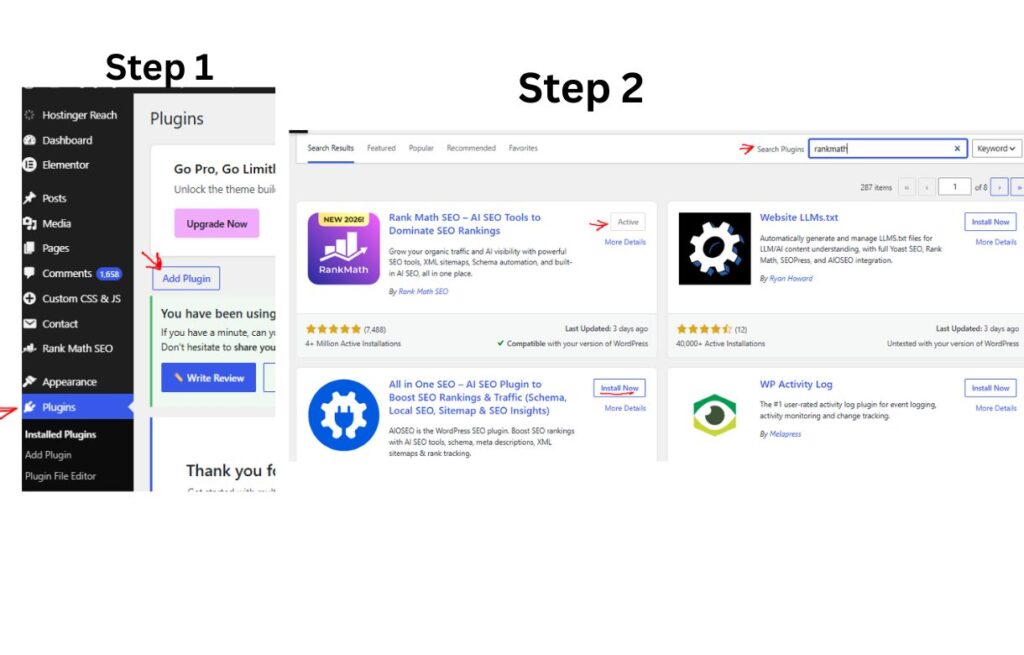
As you can see in the screenshot, next to RankMath, it says “Active”. This is because I already installed and activated this plugin. When you search for it, you will find the option Install”; once you install it, you will find the option, ‘Active “. You just have to click that tab, and your Plugin will be activated.
General Settings: What I Actually Changed
Rank Math’s General Settings tab covers site-wide behavior — things like link handling, sitemaps, and your Search Console connection. Most of the defaults are fine. Here’s where I stepped in.
What Are the Right Link Settings for Bloggers?
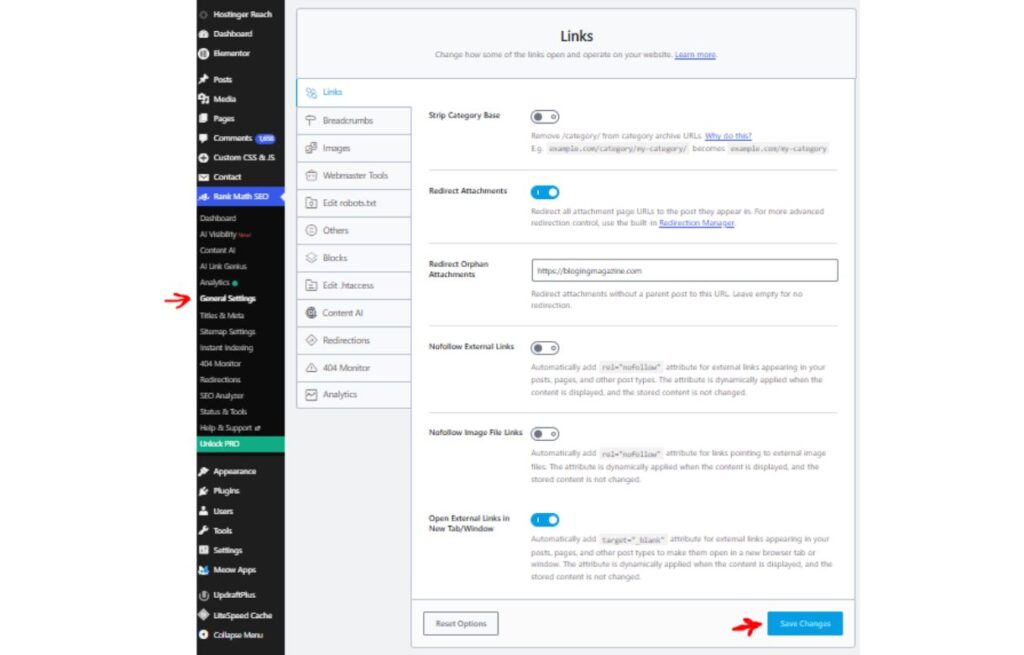
Under General Settings → Links, I keep external links set to open in the same tab rather than forcing a new tab — I’d rather let the reader decide. I’ve also left “nofollow external links” off by default, and only apply nofollow manually on a per-link basis when I’m linking to something I don’t want to vouch for, like an unreliable source I’m citing critically.
How Should Bloggers Set Up Their Sitemap?
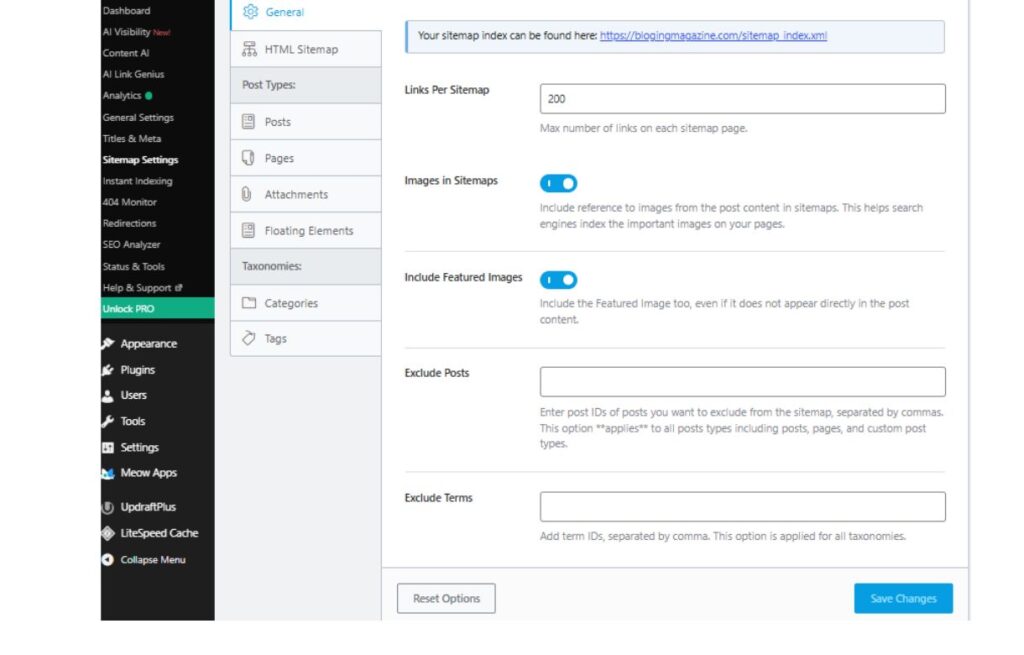
Under General Settings → Sitemap, I make sure only content I actually want indexed is included. I exclude my General category (where I’ve been migrating off-niche legacy content) from the sitemap, since I don’t want Google prioritizing crawl budget on posts I’m actively trying to move away from.
Do You Need to Connect Search Console Inside Rank Math?
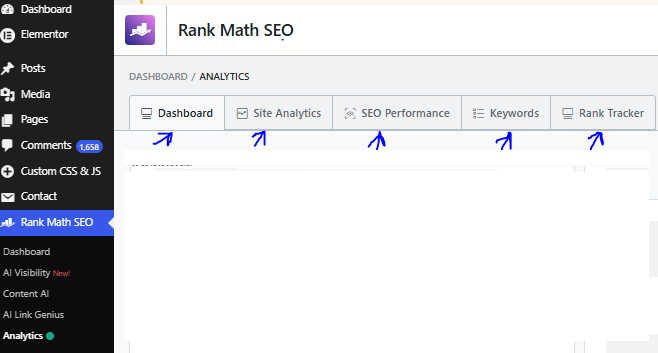
Yes, I’d recommend it. Connecting Search Console directly inside Rank Math (under General Settings → Analytics) means you can see indexing and performance data without leaving your WordPress dashboard. I still check Search Console directly for deeper analysis, but the in-dashboard summary is a fast gut-check.
Titles & Meta: The Settings That Matter Most
This is the tab I’d tell any blogger to spend the most time on, since it directly controls how your posts and pages appear in search results.
What Should Your Global Meta Settings Be?
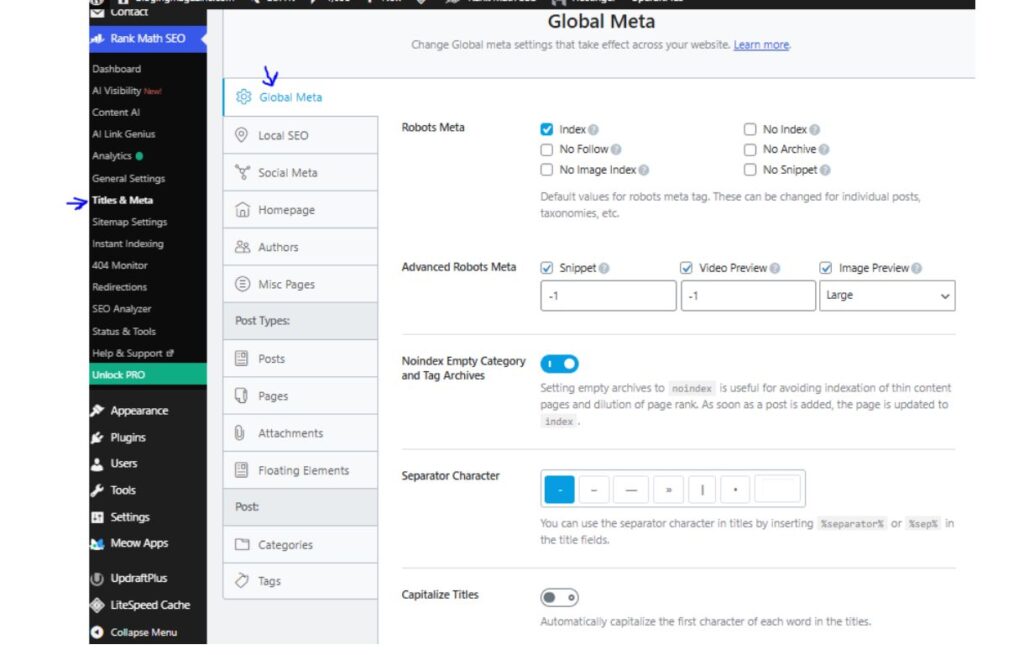
Under Titles & Meta → Global Meta, I use a simple separator (I go with a dash) between my post title and site name, and I keep my site name appended to titles for brand recognition. I also make sure the “noindex empty category and tag archives” option is on, so thin or empty taxonomy pages don’t get indexed.
How Do I Set Up My Default Post Title Template?
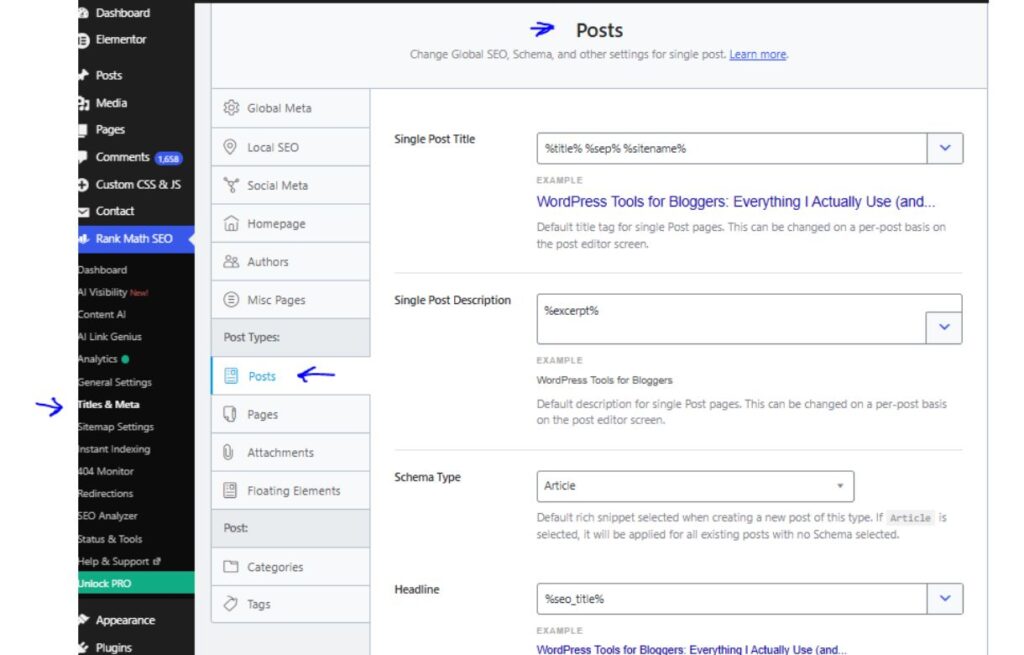
Under Titles & Meta → Posts, I write a custom title template that pulls in the post title plus my site name, rather than relying on Rank Math’s default auto-generated pattern. I do the same for the meta description field, since I always want to write my own instead of letting it pull the post’s opening sentence.
What Homepage SEO Settings Do I Use?
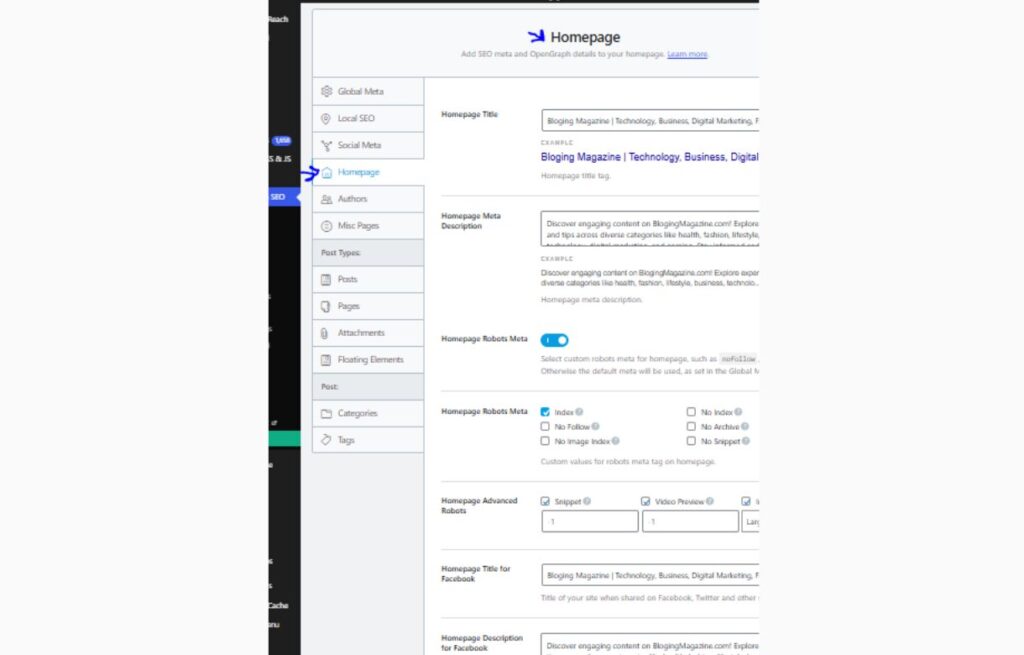
Under Titles & Meta → Homepage, I’ve written a custom homepage title and meta description rather than leaving it on autopilot, since your homepage is often the first impression for anyone searching your brand name directly.
Should You Noindex Archive Pages?
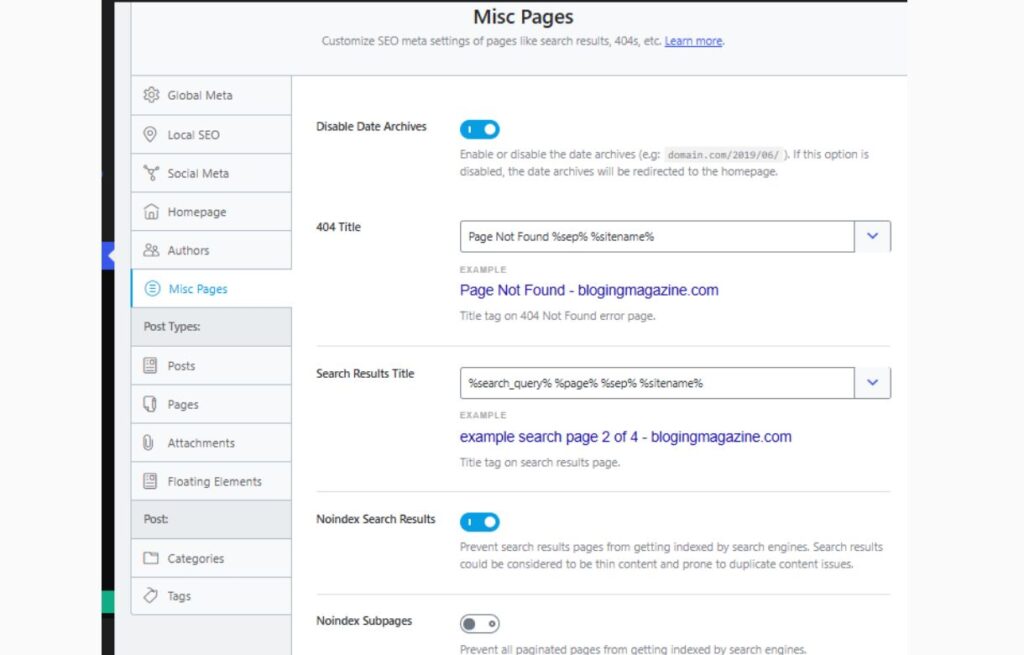
Date archives are handled under Titles & Meta → Misc Pages, where I’ve disabled them entirely — Rank Math redirects those URLs straight to the homepage rather than just marking them noindex.
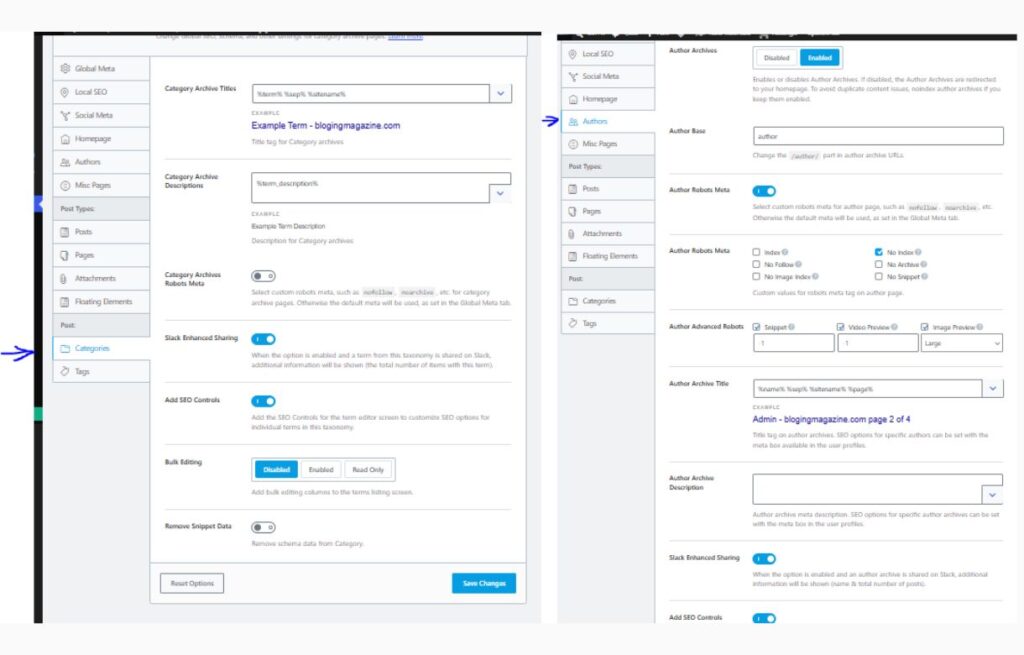
Author archives are a different case. Under Titles & Meta → Authors, I keep the archive pages enabled but set a custom robots meta of “No Index.” The page still exists; it just won’t get indexed.
Category archives are handled under Titles & Meta → Categories, and I leave the robots meta toggle off there, which means categories just follow my Global Meta default — indexed, since I use those as light topic-hub pages.
Do I Use Rank Math’s Schema Settings?
Yes — I set Article schema as the default for blog posts under the Schema tab. It’s a small setting, but it’s what allows rich results like author info and publish dates to show up in search. I don’t rely on Rank Math’s AI-generated schema suggestions blindly; I check that the schema type actually matches the content before publishing.
What I Left on Default
Not every setting needs a manual override. I’ve left Rank Math’s redirection manager, 404 monitor, and image SEO defaults untouched, since the out-of-the-box behavior already matches what I’d want for a blog this size. If you’re running a larger site with more complex redirect needs, that’s worth its own dedicated look — but for most bloggers, it’s not a place to overthink things.
Frequently Asked Questions
Do I need to change every Rank Math setting?
No. Most of Rank Math’s defaults are reasonable for a typical blog. Focus your time on Titles & Meta first, since that has the most direct impact on how your content appears in search results.
What’s the most important Rank Math setting for a new blog?
Your Titles & Meta template settings under the Posts tab. This controls how every single post you publish gets its title and description structure, so getting it right early saves you from going back and rewriting metadata later.
Does Rank Math slow down my site?
I haven’t noticed any meaningful slowdown from Rank Math itself. Site speed issues are far more often tied to hosting, image sizes, or a heavy page builder than to your SEO plugin.
Should I use Rank Math’s free version or PRO?
I run the free version, and it covers everything discussed in this guide. PRO adds features like advanced analytics and additional schema types, which may be worth it as your site scales, but it isn’t necessary to implement any of the settings above.