I ignored Schema for the first year I ran this site. I figured it was one of those “nice to have, not urgent” settings buried in a plugin menu, and I had bigger things to fix. Then I actually turned it on properly, tested a few posts in Google’s Rich Results Test, and watched star ratings and FAQ dropdowns start showing up in search results for pages that used to be plain blue links.
That’s the whole pitch for Schema. It doesn’t move your rankings directly, but it changes how your result looks once you’re already ranking — and a result with visible extra information usually gets clicked more than one without it.
This is one piece of my broader WordPress Tools for Bloggers series, and it’s how I actually have Schema configured in Rank Math — not a theoretical walkthrough of every option in the settings panel.
What Schema Markup Actually Does
Schema is structured data — a way of labeling parts of your page (a rating, a price, an FAQ, an author) so search engines can understand exactly what that content is, instead of guessing from context.
Google doesn’t guarantee it’ll use this data to enhance your listing. But without it, rich results — star ratings, FAQ accordions, breadcrumbs, “how-to” steps — generally aren’t available to you at all. Schema doesn’t create the opportunity for a rich result; it’s the minimum requirement for one.
Do I Need Schema If I’m Not an E-Commerce Site?
Yes. This is where I was wrong for a year. I assumed Schema mattered mainly for product pages with prices and star ratings. But Article schema (which Rank Math applies to blog posts by default), FAQ schema, and breadcrumb schema apply directly to a content site like this one, and none of them require selling anything.
Rank Math’s Schema Generator: Free vs Pro
Rank Math’s free version includes a genuinely useful set of Schema types — this isn’t a feature they’ve locked entirely behind Pro. What you get for free:
- Article
- Blog Posting
- Product
- Recipe
- Review
- FAQ
- How-To
- Local Business
- Person
- Service
- Software Application
- Video Object
- Job Posting
Pro adds a visual Schema Builder with drag-and-drop custom fields and the ability to combine multiple schema types on a single piece of content. For a solo blog, the free set covers almost everything I need. I’ve only felt the Pro limitation on pages where I wanted to combine two schema types at once — for example, a review post that’s also structured as a How-To.
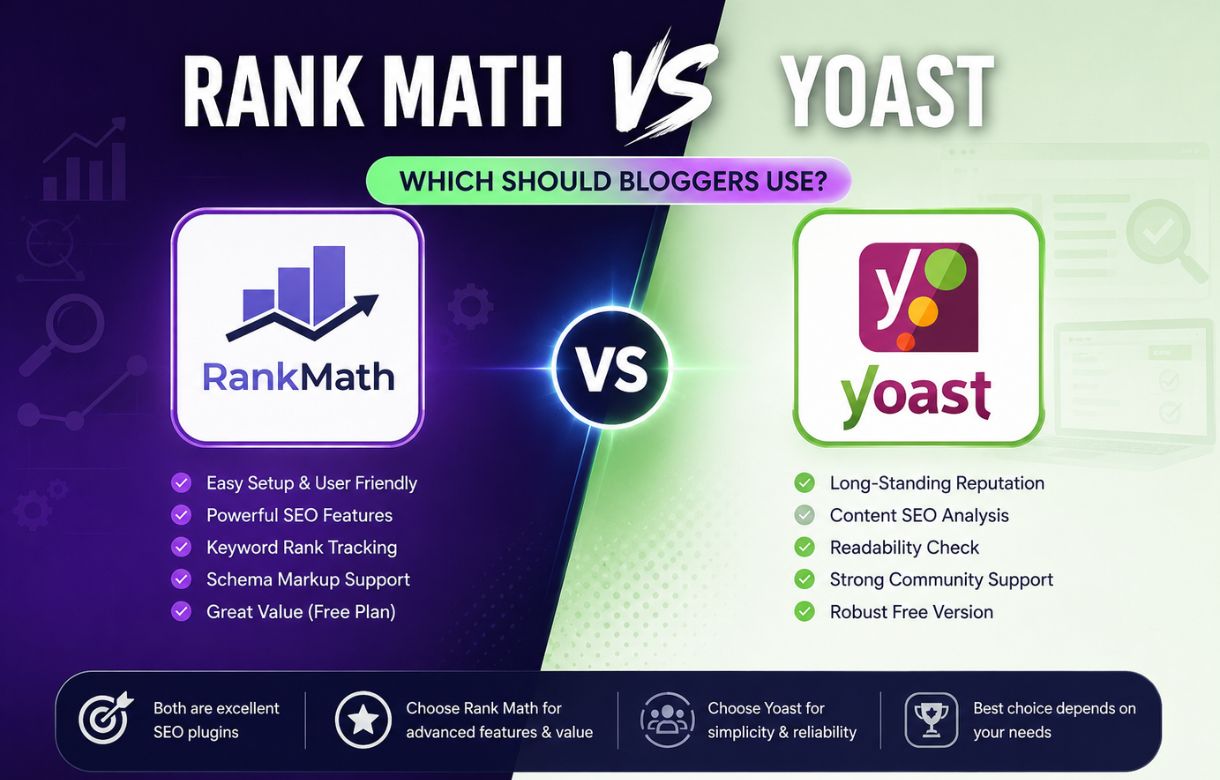
This kind of free-tier generosity is actually one of the bigger differences I noted in my Rank Math vs Yoast comparison — Yoast keeps most of its Schema flexibility behind Premium, while Rank Math gives you this many Schema types without paying anything.
Setting Schema Type Per Post
This is the part that actually matters day-to-day, and it’s the part most tutorials skip past.
Where Do I Set Schema for Each Post?
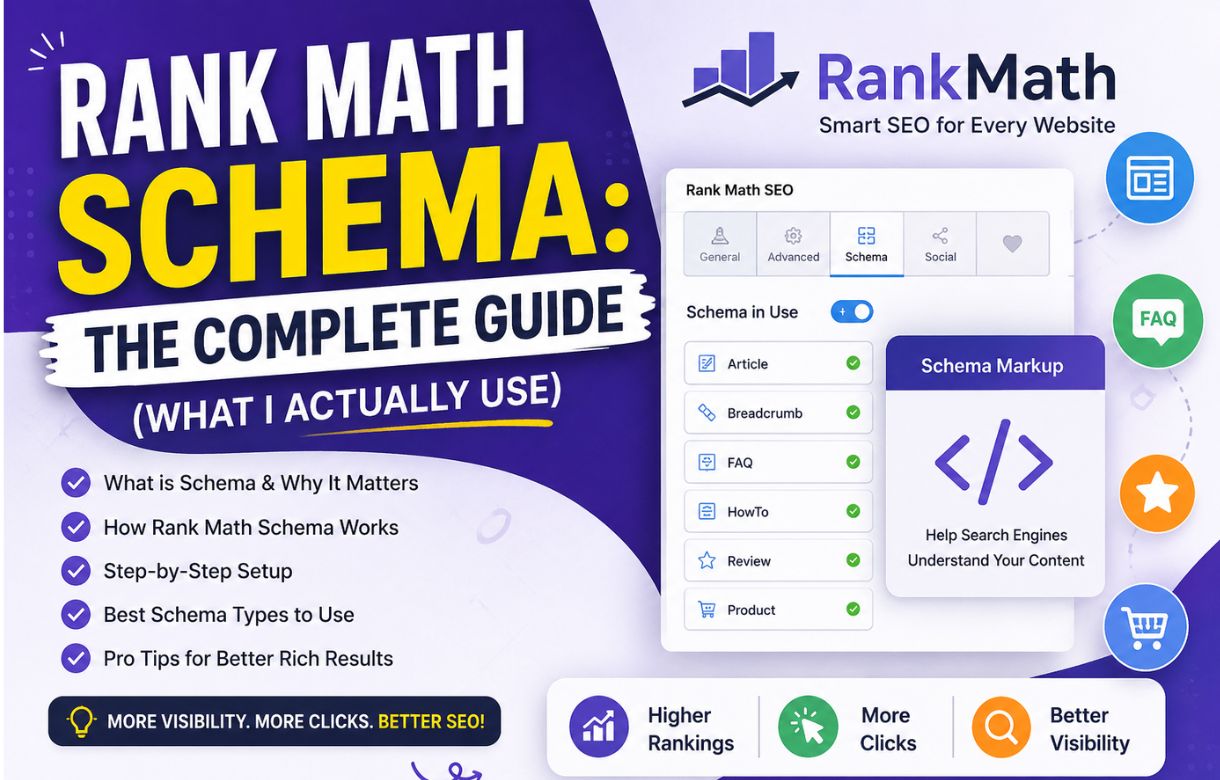
Inside the WordPress editor, in the Rank Math meta box, there’s a Schema tab alongside General and Advanced. Click it, and you’ll see a “+” option to add a Schema type to that specific post.
For a standard blog post, I use Article. Rank Math auto-fills most of the fields — headline, author, publish date, featured image — pulling from data already on the post. I still check three fields manually every time:
- Article Type — I leave this as “Blog Posting” rather than “News Article,” since I’m not a news publisher and misclassifying this can actually hurt eligibility for rich results.
- Image — Rank Math pulls the featured image automatically, but I confirm it’s actually set, since a missing featured image means a missing schema image, which can quietly disqualify the post from rich results.
- Author — this is where the “Admin” byline problem I’ve run into before actually matters. If your author name in WordPress shows as something generic, that same generic name flows straight into your Article schema.
What Schema Type Should an FAQ Section Use?
If a post has a genuine FAQ block — like most of the posts on this site do — I add FAQ Page schema in addition to Article. Rank Math has a dedicated FAQ block for the WordPress editor; when you build your FAQ using that block instead of just typing bolded questions into a paragraph, Rank Math automatically wires it into FAQ schema. No manual field-filling required.
This is the single easiest rich-result win on a content site, because most bloggers already write FAQ sections — they just don’t build them in a way that generates schema.
What About How-To Content?
For step-by-step tutorials, I use How-To schema instead of Article. Rank Math’s How-To block lets you define each step, and optionally a total time estimate. I’ve found this schema type is stricter about matching your visible content — the steps in your schema need to genuinely correspond to numbered steps a reader can see on the page, not steps you’ve invented just to qualify for the schema.
Global Schema Defaults
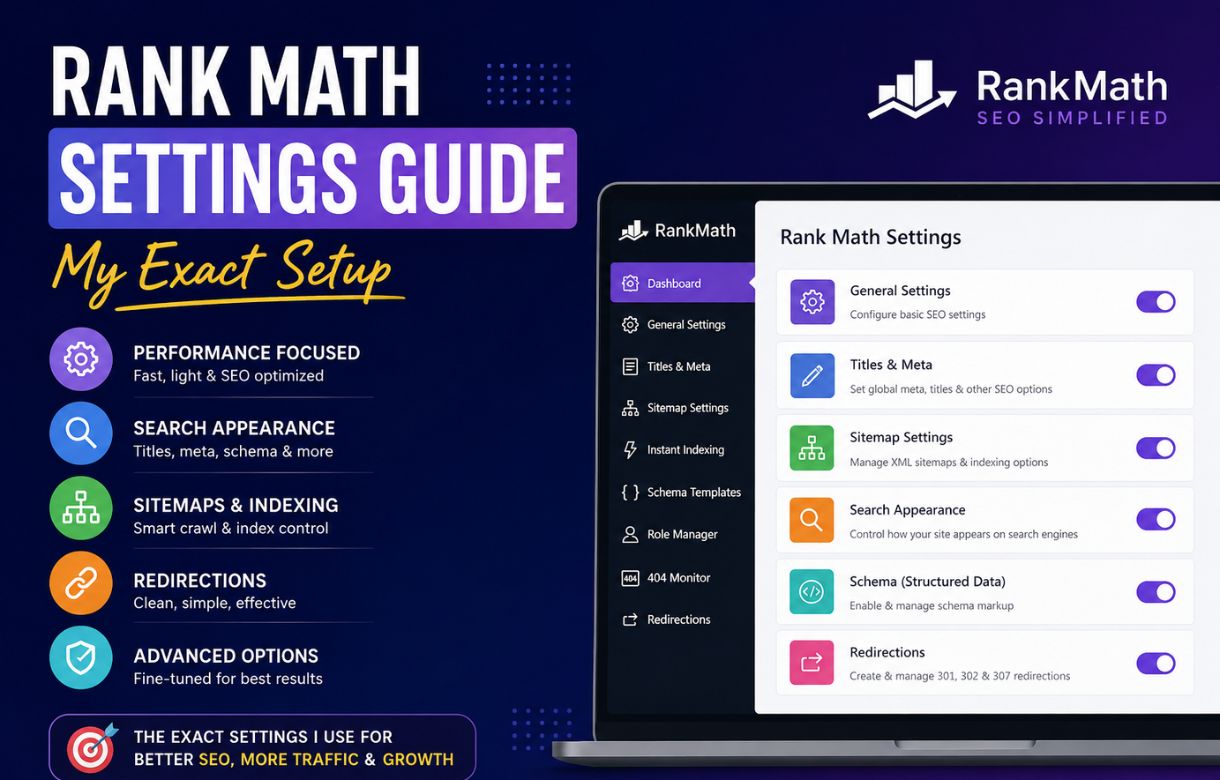
Beyond per-post settings, Rank Math lets you set default Schema types by content type — under Rank Math SEO → Titles & Meta → Posts (and separately for Pages), there’s a Schema Type dropdown. This lives right next to the Posts settings I walked through in my exact Rank Math settings guide, so if you haven’t set up that base configuration yet, Schema builds directly on top of it. I have mine set to Article for Posts by default, which means new posts start with Article schema pre-applied rather than me needing to add it manually every time. I still open the Schema tab per post to confirm the details, but the default saves a step.
How I Test Schema Before Publishing
I don’t trust that Schema is working just because Rank Math shows a green checkmark. Before publishing, I run the live URL — or the post preview link — through Google’s Rich Results Test. It tells you plainly whether the structured data is valid, and separately whether it’s eligible for a rich result (those are two different things — code can be valid and still not qualify for a visible enhancement).
#PENDING-rank-math-content-ai-deep-dive
What’s the Difference Between “Valid” and “Eligible” in the Rich Results Test?
Valid means your Schema markup is written correctly and Google can parse it without errors. Eligible means the content itself meets the additional requirements for that rich result type to actually display — for FAQ schema, for example, Google has become increasingly selective about which sites qualify for the visible FAQ dropdown in search results, even when the code itself is perfectly valid. I’ve had posts pass validation cleanly but never show the rich result in practice. That’s expected, not a sign something’s broken.
Mistakes I Made With Schema (So You Don’t Have To)
Duplicate schema from theme and plugin. Some WordPress themes inject their own basic Schema markup independently of your SEO plugin. If your theme is already outputting Article schema and Rank Math is also outputting Article schema, you can end up with duplicate or conflicting markup on the same page. I checked mine using the Rich Results Test early on and found exactly this — two competing Article blocks. If you see duplicate schema types reported for one URL, that’s usually the cause.
Leaving Article Type as “News Article” by default. On one early post, this was set incorrectly and stayed that way for months. News Article schema has stricter eligibility requirements meant for actual news publishers, and a personal blog post carrying that type is more likely to be ignored than helped.
FAQ text typed manually instead of built in the FAQ block. Writing “Q: … A: …” directly into a paragraph looks identical to a reader, but it generates zero schema. If you want the rich result, the content has to go through Rank Math’s actual FAQ block.
Frequently Asked Questions
Does adding Schema markup guarantee a rich result in Google?
No. Schema tells Google what your content is; it doesn’t obligate Google to display it as a rich result. Whether a rich result actually appears depends on Google’s own eligibility criteria, which change over time and vary by content type.
Can I use more than one Schema type on the same post?
In Rank Math’s free version, this is limited. Rank Math Pro’s Schema Builder allows layering multiple types — for example, Article combined with FAQ — more flexibly. In practice, I’ve found Article plus a separately-triggered FAQ block (via the dedicated FAQ block) works fine even on the free plan.
Will Schema markup fix a post that isn’t ranking?
No. Schema affects how an already-ranking result looks in search, not whether you rank in the first place. If a post isn’t ranking, the fix is almost always in content quality, keyword targeting, or technical SEO — not Schema.
Where do I check if my Schema is actually working?
Google’s Rich Results Test, using either the live published URL or a preview link. Rank Math’s own green “SEO Score” checkmark confirms the plugin thinks the fields are filled correctly — it doesn’t confirm Google will treat the page as eligible for a rich result.